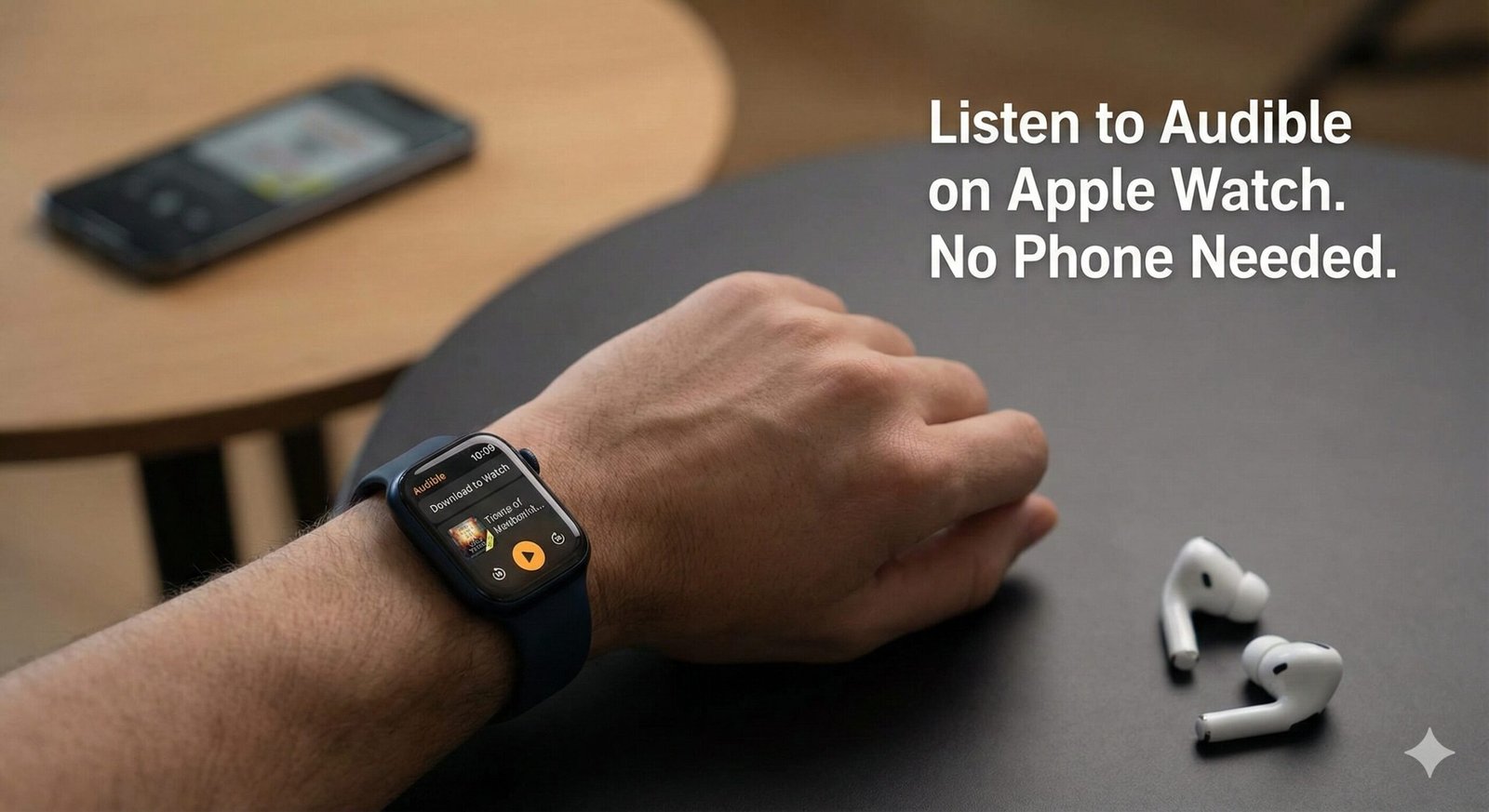
How to Listen to Audiobooks on Apple Watch Without Phone: A Complete Step-by-Step Guide
The Short Answer: Can You Do It?
Yes, absolutely. You can listen to audiobooks on your Apple Watch without your iPhone nearby. Whether you are going for a run, hitting the gym, or just want to disconnect from the constant notifications of your smartphone, the Apple Watch is a fully capable standalone media player.
However, it is not always as simple as pressing “play.” To achieve true phone-free freedom, you must perform one of two actions beforehand:
- Download the content directly to the Watch’s internal storage (Offline Mode).
- Stream the content via cellular data (requires an Apple Watch with Cellular/LTE capabilities).
Most users prefer the download method to save battery life and data. In this guide, we will cover exactly how to set this up across the major audiobook platforms.
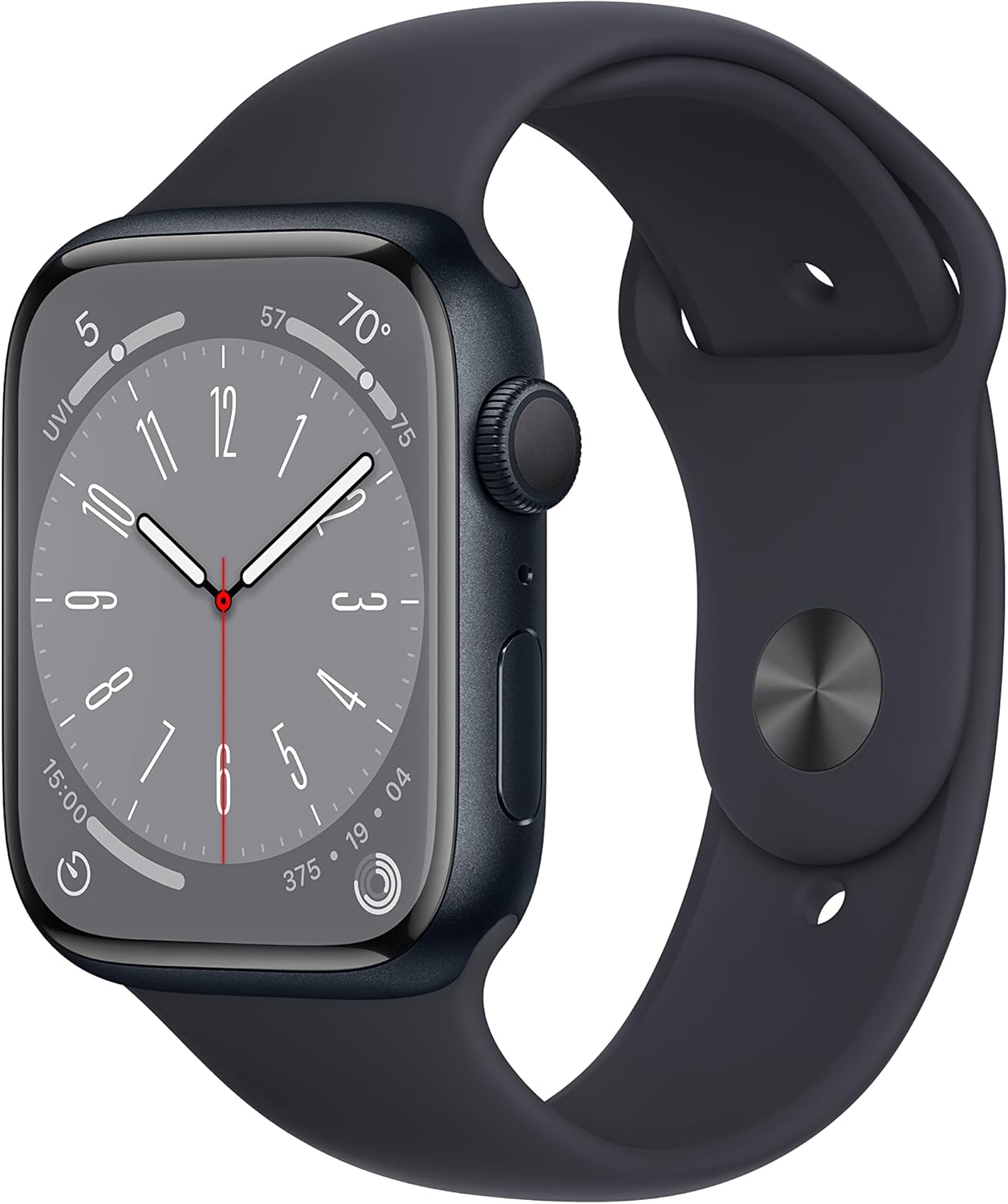
To stream audiobooks without a phone, you need a cellular model. The Series 9 offers the brightest display and fastest processor for seamless syncing.
Check Price on AmazonWhat You Need Before You Start
Before diving into the specific apps, ensure your ecosystem is ready. Trying to sync a 20-hour audiobook to an outdated watch with no battery is a recipe for frustration.
- Bluetooth Headphones: The Apple Watch cannot play audiobooks through its built-in speaker. You must pair Bluetooth headphones or earbuds.
- Storage Space: Audiobooks are large files. Check your usage by going to Settings > General > Storage on your Watch.
- Charging Cable: Syncing large files (like a 15-hour thriller) happens much faster when the Watch is connected to its charger.
- Updated watchOS: Ensure you are running the latest version of watchOS for app compatibility.
If you are new to the world of audiobooks and wondering which platform to choose, you might want to read our guide on how Audible works to see if their credit system aligns with your listening habits.
Method 1: Using Audible (The Most Popular Choice)
Audible is the heavy hitter in the audiobook world. Fortunately, they have significantly improved their Apple Watch app in recent years, making phone-free listening much more reliable.
How to Sync Audible Books to Apple Watch
- Open the Audible App on iPhone: Navigate to your “Library.”
- Locate Your Book: Find the audiobook you wish to transfer. Tap the three dots (…) next to the title.
- Select “Sync to Apple Watch”: This option should appear in the menu. Note: If the book is very long, it may be split into parts.
- Wait for the Transfer: This is the crucial step. Place your Apple Watch on its charger and keep your phone nearby. Transfers via Bluetooth can be slow; a standard book might take 15-20 minutes.
- Verify on Watch: Open the Audible app on your Watch. Navigate to the “Library” tab on the Watch interface to confirm the book has a “watch” icon or is listed under “Downloaded.”
Streaming via Cellular
If you have an LTE-enabled Watch, you don’t strictly need to sync beforehand. You can open the Audible app on your Watch, tap on any title in your library, and it will begin streaming immediately over your data connection.
Looking for your next gripping listen? Check out our curated list of the best thriller audiobooks to test out your new setup.
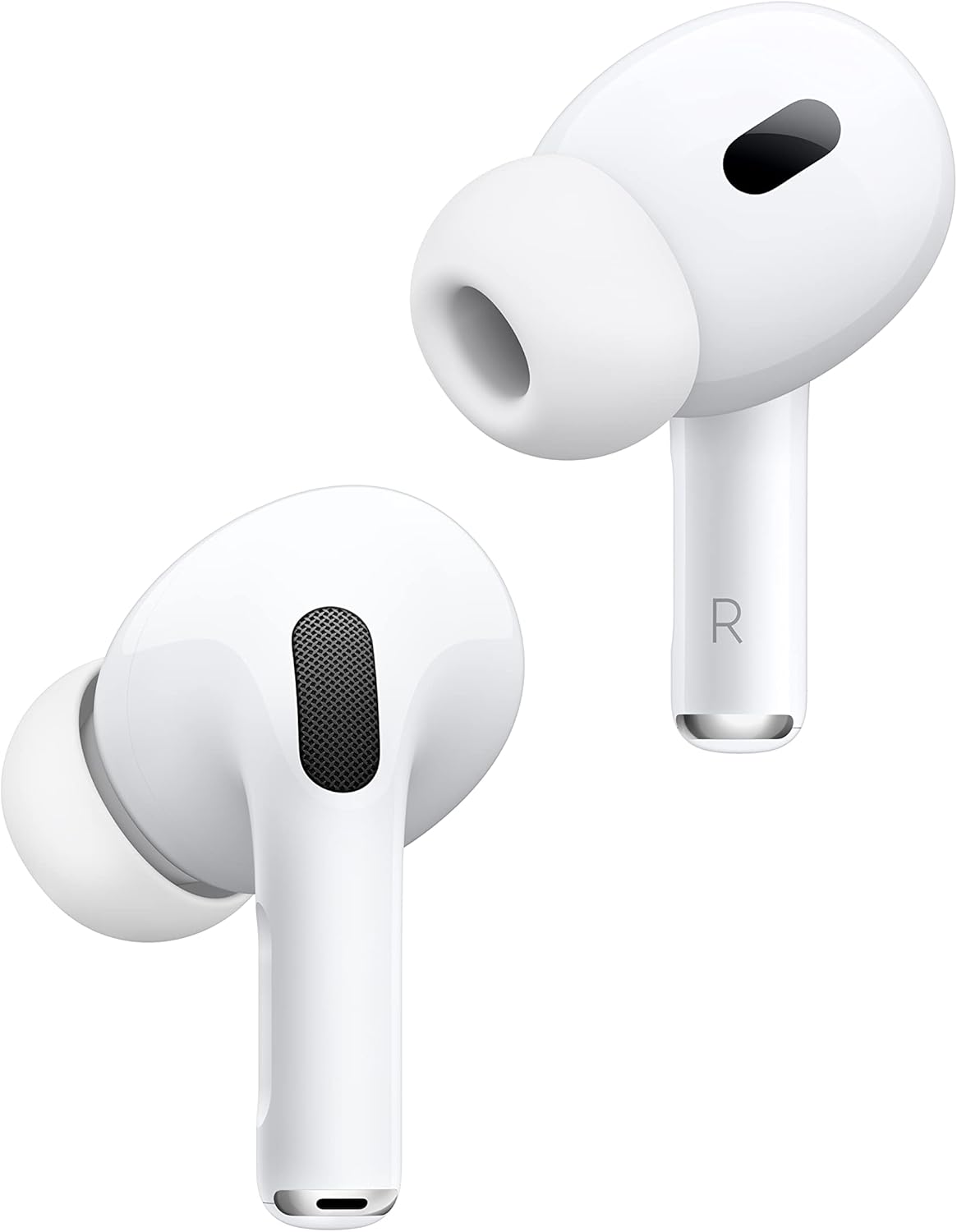
The best companion for Apple Watch. Seamless switching, active noise cancellation, and volume control directly on the stem make these ideal for runners.
Check Price on AmazonMethod 2: Using Apple Books (The Native Way)
Apple Books (formerly iBooks) offers the smoothest integration because it is built into the operating system. If you buy your audiobooks directly from Apple, this is often the path of least resistance.
Setting Up Auto-Sync
Apple allows you to automatically sync your “Reading Now” or “Want to Read” collections.
- Open the Watch app on your iPhone.
- Scroll down and tap Audiobooks.
- Toggle on “Reading Now”. This ensures that whatever you are currently listening to on your phone is automatically pushed to your Watch when it charges.
Manual Syncing
If you want specific titles that you aren’t currently reading:
- Open the Watch app on iPhone > Audiobooks.
- Under “Add Audiobooks from Library,” tap Add Audiobooks…
- Select the titles you want. They will transfer the next time your Watch is charging.
Method 3: Using Spotify (For Subscribers)
Spotify has aggressively entered the audiobook market. If you are a Premium subscriber, you likely have access to 15 hours of audiobook listening per month. Here is how to take those books on the run without your phone.
Requirements
You must have a Spotify Premium account to download content for offline listening on Apple Watch. Free users can only control playback of the phone.
Steps to Download:
- Launch Spotify on your iPhone and find the audiobook.
- Tap the three dots (…) or the download arrow.
- Select “Download to Apple Watch.”
- You can check the progress in the “Downloads” section of the Spotify app on your Watch.
Once downloaded, a small green arrow will appear next to the title on your Watch screen. You can now leave your phone behind and play the book directly via Bluetooth headphones.

If AirPods fall out of your ears during runs, the Beats Fit Pro wingtips provide a secure fit while retaining the Apple H1 chip for instant Watch pairing.
Check Price on AmazonMethod 4: Using Libby (Library Books)
For the budget-conscious reader, Libby connects to your local library. However, Libby’s Apple Watch integration has historically been a remote control rather than a standalone player.
The Workaround: As of the latest updates, Libby generally does not support direct file downloads to the Apple Watch for offline playback. It mostly acts as a controller for the iPhone app.
However, you can perform a “hack” using the “OverDrive” desktop app (if still accessible) or by importing DRM-free MP3s into Apple Music/iTunes and syncing them as music, though this is tedious. For most users, if you need offline library books on your wrist, you might be out of luck with the native Libby app. For a detailed breakdown of the differences between paid and free services, read our comparison of Audible vs. Libby.
Essential Gear for Phone-Free Listening
To successfully leave your phone at home, your hardware ecosystem needs to be reliable. Here is what impacts your experience.
1. Reliable Bluetooth Headphones
Connection drops are the enemy of immersion. Headphones with the Apple H1 or H2 chip (AirPods, Beats) are superior because they switch automatically between your devices. If you use third-party buds (Sony, Bose), you may need to manually go into your Watch settings > Bluetooth to connect them before you start your run.
2. Fast Charging Solutions
Audiobook transfers consume significant battery and processor power. A fast-charging cable (USB-C) for the Apple Watch Series 7 and newer can speed up the transfer process significantly.
3. Cellular Plan (Optional but Recommended)
While not strictly “gear,” adding your Watch to your cellular plan costs roughly $10/month. This allows you to stream books you forgot to download and, more importantly, download new titles mid-run if you finish your current book unexpectedly.

Don’t get caught with a dead watch before your commute. This cordless, MFi-certified portable charger plugs into any USB-C port for a quick boost.
Check Price on AmazonTroubleshooting Common Sync Issues
Technology isn’t perfect. Here are the most common reasons why your book won’t play without the phone, and how to fix them.
“Content Not Available” Error
This usually means the sync was interrupted. Ensure your Watch is on the charger and your phone is within Bluetooth range. Delete the download from the Watch app and try again.
Syncing is Stuck at X%
Bluetooth transfer is slow. Toggle Bluetooth off and on your iPhone. In some cases, forcing the transfer over Wi-Fi (by turning off Bluetooth on the iPhone, forcing the Watch to use Wi-Fi) can speed things up, but it is technically tricky to trigger.
Audiobook App Crashing
Uninstall the app from the Watch (long press the icon in grid view) and reinstall it via the “Watch” app on your iPhone. This clears the cache and often resolves playback glitches.
Understanding Data and Storage
If you are streaming books via LTE, be mindful of your data cap. Audiobooks are generally efficient, consuming roughly 30MB per hour of high-quality audio. However, downloading a massive 40-hour fantasy epic can take up nearly 1GB of space.
For users with older Apple Watches (Series 3 or 4) with limited capacity (8GB or 16GB), you may need to delete music playlists or photos to make room for long audiobooks. For a deeper dive into the technical specs of consumption, check out our analysis on how much data an audiobook uses.