Zoom vs. Microsoft Teams vs. Google Meet: Which is Best for Remote Work?
We tested the “Big Three” video conferencing platforms on performance, features, and ease of use to help you decide which one deserves a spot in your remote workflow.
The Battle for Your Screen Time
In recent years, “You’re on mute” has become the catchphrase of the modern workplace. But as remote and hybrid work models solidify, the tools we use have evolved from simple video chat apps into full-blown collaboration ecosystems.
Choosing the right platform is not just about video quality anymore. It is about how well it integrates with your calendar, how secure it is, and whether it drains your laptop battery in an hour. If you are still figuring out your remote environment, you might want to check our guide on how to stay focused while working from home.
In this comprehensive comparison, we are pitting the three heavyweights against each other: Zoom (the user-friendly giant), Microsoft Teams (the corporate powerhouse), and Google Meet (the browser-based contender).
The Remote Work Landscape: Why This Decision Matters
The shift to distributed work was already underway before it became a global necessity. What has happened since is that companies — from two-person startups to Fortune 500 enterprises — have permanently restructured around digital-first collaboration. The video conferencing tool you choose is no longer a minor software preference; it is foundational infrastructure.
Getting this decision wrong has real costs: wasted licensing fees, friction-heavy meetings, integration headaches with your existing tools, and a measurable drag on team productivity. Getting it right, however, creates a seamless foundation that your team barely notices — because it just works.
How We Evaluated Each Platform
Our evaluation covers eight core dimensions that matter to real remote teams:
- Ease of use — how quickly a new user can join or host a meeting without training
- Video and audio quality — stability and clarity across varied internet conditions
- Collaboration tools — file sharing, co-editing, whiteboarding, and chat features
- Security and privacy — encryption standards, compliance, and administrative controls
- Pricing — value across free, professional, and enterprise tiers
- Integrations — compatibility with calendars, productivity suites, and third-party apps
- Mobile experience — quality of iOS and Android apps
- AI features — transcription, noise cancellation, meeting summaries, and smart assistants
ℹ️ Note: All three platforms update frequently. We focus on consistent structural strengths and weaknesses rather than specific version features, which helps this comparison remain useful regardless of when you are reading it.
Quick Comparison: At a Glance
| Feature | Zoom | Microsoft Teams | Google Meet |
|---|---|---|---|
| Best For | Ease of use & external calls | Internal corporate collaboration | G-Suite users & simplicity |
| Free Limit | 40 mins (100 participants) | 60 mins (100 participants) | 60 mins (100 participants) |
| Installation | Desktop app recommended | Heavy desktop app | Browser-based (no install) |
| Video Quality | High (1080p optimized) | Good (resource heavy) | Good (variable) |
| Ecosystem | Standalone + integrations | Microsoft 365 deep integration | Google Workspace |
| Noise Cancellation | Advanced (paid) | Good (built-in) | Good (built-in) |
| Breakout Rooms | Yes (all plans) | Yes (paid plans) | Yes (paid plans) |
| Live Captions | Yes (paid) | Yes (built-in) | Yes (free, all plans) |
| AI Meeting Summary | Yes (paid add-on) | Yes (Copilot) | Yes (Gemini) |
| Max Participants (paid) | 1,000+ | 10,000+ | 500 |
1. Zoom: The King of Reliability
Zoom became a verb for a reason. Its primary selling point is that it just works. Whether you are tech-savvy or a complete beginner, Zoom offers the lowest barrier to entry for external-facing meetings. It handles poor internet connections better than its competitors and offers industry-leading video compression.
However, it is a standalone tool. While it integrates with everything, it does not have the native document collaboration feel of Teams or Meet.
✅ Pros
- Superior video and audio compression
- “Touch Up My Appearance” and advanced filters
- Extremely intuitive interface for new users
- Best-in-class for webinars and large events
- Excellent breakout room controls
- Strong third-party app marketplace
❌ Cons
- Strict 40-minute limit on the free plan
- Historical security concerns (largely resolved)
- Requires a separate app download for best performance
- AI features require an additional paid add-on
- Collaboration tools feel bolted-on rather than native
Zoom in Depth: What Makes It the Default
Zoom’s dominance is rooted in timing and execution. When distributed work expanded rapidly, Zoom was already polished, fast, and cross-platform. It worked on Windows, Mac, Linux, iOS, and Android with consistent quality. Joining a meeting required no account — just a click on a link.
This “frictionless guest experience” is something Teams still struggles with. Inviting an external client to a Zoom call is a one-step process. Inviting them to Teams often involves a guest account workflow that confuses people who are not already in the Microsoft ecosystem.
Zoom’s compression algorithm is also genuinely superior for low-bandwidth environments. If your team works across multiple countries with varying connection quality, Zoom’s adaptive stream management tends to produce fewer pixelated freeze-frames and audio drops than its competitors on equivalent connections.
Zoom’s Weak Points
Where Zoom falls short is in persistent collaboration. After a Zoom call ends, the conversation is over — unless you have saved a recording or sent follow-up notes. Teams and Meet, by contrast, are connected to persistent chat threads, shared file systems, and project channels that exist before and after the meeting itself.
For teams that live inside a single platform all day, Zoom requires them to context-switch to email or another chat tool to continue collaboration. This is a meaningful productivity cost that the pure meeting-quality statistics do not capture.
Look Professional on Any Platform

Regardless of the software, a grainy laptop camera kills your credibility. The Logitech C920 is the gold standard for remote workers.
Check Price on Amazon2. Microsoft Teams: More Than Just Video
If your company runs on Windows and Office 365, Microsoft Teams is likely already installed. Teams is not just a video chat app; it is a collaborative workspace. You can edit a Word document inside the meeting window, chat in channels, and manage files without leaving the app.
The downside? It is resource-hungry. Teams is known to slow down older machines, so if you have not upgraded recently, check out our list of budget laptops suitable for remote work.
✅ Pros
- Included with Microsoft 365 Business subscriptions
- Deep integration with Word, Excel, and PowerPoint
- Robust persistent chat and channel features
- High security standards — SOC 2, ISO 27001, HIPAA compliant
- Supports up to 10,000 participants for town halls
- Microsoft Copilot AI integration for meeting summaries
❌ Cons
- Steep learning curve; interface is notoriously cluttered
- Heavy RAM and CPU usage — poor on older hardware
- Confusing guest access workflow for external clients
- Overkill and expensive for small teams without Microsoft 365
- Slower to release consumer-facing feature improvements
Teams in Depth: A Digital Office, Not Just a Meeting Room
The right mental model for Teams is not “video conferencing software with extra features” but rather “a digital office where video meetings are one room among many.” Teams channels function like persistent project rooms — they hold documents, conversation history, shared calendars, task lists, and meeting recordings, all organized by topic or project.
For organizations already invested in Microsoft 365, this creates genuine operational leverage. A project manager can spin up a new Team for a client engagement, share a SharePoint folder, assign tasks in Planner, and schedule a kick-off call — all without leaving a single interface.
Microsoft’s acquisition of LinkedIn and its investment in artificial intelligence through its Copilot product line also means Teams is the most likely platform to receive continued deep investment in AI-powered workplace features. Meeting transcription, action item extraction, and smart agenda generation are all available on premium tiers.
Who Should Not Use Teams
Teams is genuinely overkill for freelancers, small creative agencies, or companies that work heavily with external partners. If more than a third of your calls involve people outside your organization, the guest access friction will frustrate your clients and reflect poorly on your professionalism. In these scenarios, Zoom’s clean guest experience wins decisively.
Hear and Be Heard Clearly
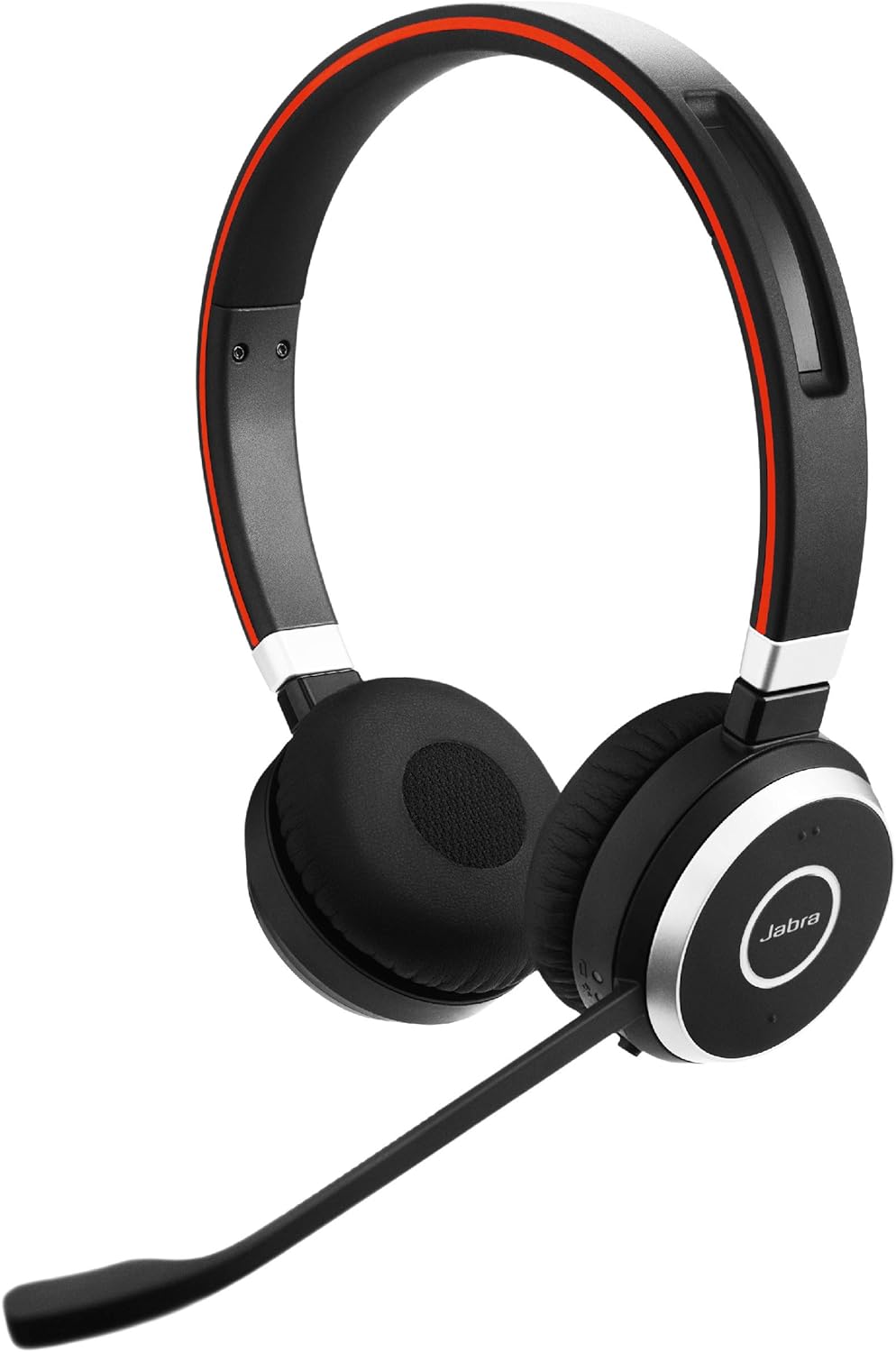
Background noise is the enemy of productivity. A noise-canceling headset is a non-negotiable for serious remote setups.
Check Price on Amazon3. Google Meet: Simplicity & Speed
Google Meet (formerly Hangouts Meet) is the champion of accessibility. There is no software to install; you simply click a link, and you are in Chrome. It is lightweight, fast, and deeply integrated into Google Calendar and Gmail.
For users who live in Google Docs and Drive, Meet is seamless. It has added features like noise cancellation and background blur, catching up to Zoom’s capabilities.
✅ Pros
- No software installation required — runs in any browser
- Excellent live captioning powered by Google’s AI
- Generous free version (60-minute limit)
- Integrated directly into Gmail and Google Calendar
- Fast to join — lowest friction of the three
- Gemini AI integration for meeting notes (Workspace plans)
❌ Cons
- Fewer advanced features than Zoom (complex polling, etc.)
- Screen sharing can feel clunky in-browser
- High CPU usage when combined with other Chrome tabs
- Limited participant cap (500 vs. Teams’ 10,000)
- Less suitable for organizations not using Google Workspace
Meet in Depth: The Frictionless Option
Google Meet’s greatest strength is one that rarely shows up in feature lists: it gets out of your way. For a quick check-in, a client call, or a team standup, the experience from “send link” to “everyone on video” is faster and smoother in Meet than in either competitor.
Google’s real-time captioning is also meaningfully better than what Zoom offers at comparable price points. Powered by the same speech recognition technology behind Google’s broader AI stack, captions in Meet are accurate, low-latency, and available for free — a genuine accessibility advantage.
The integration with Google Calendar deserves particular attention. When you create a calendar event in Google Workspace, a Meet link is generated automatically and included in invitations. There is nothing to configure, no add-on to install, and no separate account to manage. For teams that organize their entire workflow through Google Calendar, this frictionlessness is a significant daily quality-of-life advantage.
Meet’s Ceiling
Where Meet hits its ceiling is at scale and complexity. If you need to host a webinar with 800 attendees, manage breakout rooms across 30 groups, or run a town hall for your entire company, Meet’s participant and feature limits will frustrate you. For large-format events, Zoom or Teams are better-suited platforms.
Head-to-Head Feature Breakdown
1. User Interface & Ease of Use
Winner: Zoom.
Zoom’s interface is intuitive. Large buttons, clear settings, and a Gallery View that everyone loves. Teams feels like an enterprise dashboard, and while Meet is simple, hiding settings inside menus can be frustrating during a live call. For new users or infrequent video callers — particularly external clients and guests — Zoom wins this category convincingly.
Teams has made significant UI improvements in recent versions, consolidating its navigation and reducing the number of menus required for common actions. But it still requires real onboarding for new users to use effectively. Meet strikes a balance that is clean but occasionally too minimal, hiding useful options in three-dot menus during active calls.
2. Performance & Quality
Winner: Zoom.
Zoom prioritizes stream stability over resolution, meaning your call rarely drops even on weak Wi-Fi. Teams often struggles with syncing audio and video on slower connections. Meet depends heavily on your browser’s performance and how many other tabs are competing for resources.
In practical terms: if you have team members working from home with consumer-grade internet connections — or from hotel rooms, coworking spaces, or locations with inconsistent signal — Zoom’s adaptive compression produces noticeably fewer disruptions. This alone can make it the right choice for globally distributed teams.
3. Collaboration Tools
Winner: Microsoft Teams.
If you need to co-author a document in real-time while chatting, Teams wins decisively. It is a digital office, whereas Zoom is just a meeting room. For effective collaboration, you also need good habits — learn about the habits of effective people to pair with these tools.
Meet integrates with Google Docs for collaborative note-taking during meetings — a clever feature that lets participants contribute to a shared document without screen sharing. But it does not match the depth of Teams’ channel-based workflow management.
4. Security
Winner: Microsoft Teams (for enterprise).
While Zoom has improved significantly with end-to-end encryption, Microsoft Teams benefits from Microsoft’s enterprise-grade security infrastructure and a wider range of compliance certifications. For industries like healthcare, finance, and legal — where regulatory compliance is non-negotiable — Teams’ compliance portfolio is often the deciding factor. For personal security, remember to use a password manager — check our review of top password managers.
Google Meet is SOC 2 compliant and encrypts data in transit and at rest, making it appropriate for most business use cases. However, it does not match Teams’ breadth of compliance certifications for regulated industries.
5. Breakout Rooms
Winner: Zoom.
Zoom pioneered mainstream breakout rooms and still does them best. Hosts can pre-assign participants, rename rooms, broadcast messages to all rooms simultaneously, and set timers that automatically return participants to the main session. The experience is smooth and intuitive even for non-technical facilitators.
Teams added breakout rooms later and has improved them, but the host controls are less granular. Meet’s breakout room functionality, added relatively recently, covers the basics but lacks the advanced facilitator controls that trainers and workshop hosts rely on.
6. Recording & Transcription
Winner: Tie (Teams & Zoom, paid).
Both Zoom and Teams offer meeting recording with cloud storage and auto-generated transcripts on paid plans. Teams stores recordings in SharePoint or OneDrive, which makes them easy to share within the organization. Zoom stores recordings in Zoom’s own cloud, requiring an export step to share in a document management system.
Google Meet offers recording on paid Workspace plans, but the transcript quality and integration with Drive have improved substantially. For teams that rely heavily on asynchronous catch-up via meeting recordings, all three are viable — but Teams’ direct SharePoint integration makes recordings more discoverable within existing workflows.
Pricing Compared in Detail
Pricing for all three platforms is tiered and changes regularly, so we focus on structural pricing differences rather than exact figures. Always verify current pricing on each platform’s official website before making a decision.
| Tier | Zoom | Microsoft Teams | Google Meet |
|---|---|---|---|
| Free | 40-min limit; 100 participants | 60-min limit; 100 participants | 60-min limit; 100 participants |
| Entry Paid | Per host/month — removes time limit, 300 participants | Via Microsoft 365 Business Basic — includes full Office suite | Via Google Workspace Starter — includes Drive, Gmail, Docs |
| Business | Per host/month — cloud recording, managed domains | Microsoft 365 Business Standard — adds desktop Office apps | Google Workspace Business Standard — adds recording, noise cancel |
| Enterprise | Custom pricing — unlimited cloud storage, dedicated support | Microsoft 365 E3/E5 — full compliance, advanced security | Google Workspace Enterprise — advanced security, eDiscovery |
| Standalone Value | Good — video-only teams pay only for what they use | Excellent — full Office suite included at similar price | Excellent — full Google Workspace included |
The True Cost Calculation
For most businesses, the real pricing question is not “which video tool is cheapest” but rather “which productivity suite should we pay for, and which video tool comes with it.” Teams is included in Microsoft 365 at no additional cost. Meet is included in Google Workspace at no additional cost. Zoom, by contrast, is a dedicated per-seat license on top of whatever productivity tools you already use.
For organizations already paying for Microsoft 365 or Google Workspace, the economically rational choice is almost always Teams or Meet respectively. The only reason to pay additionally for Zoom is if its specific features — superior compression, webinar tooling, or breakout room controls — create enough value to justify the added cost.
💡 Budget Tip: If your team is under 20 people and primarily does internal meetings, Google Meet’s free tier — at 60 minutes per call — covers most use cases without any subscription. For external client calls longer than an hour, a single Zoom Pro seat used by the person who hosts external meetings is often the most cost-effective hybrid approach.
Security & Privacy Deep Dive
Security is no longer a checkbox item for remote teams — it is a fundamental evaluation criterion, particularly for companies handling sensitive client data, proprietary IP, or personally identifiable information.
Encryption Standards
All three platforms use AES-256 encryption for data in transit. The key differentiator is end-to-end encryption (E2EE), where only the meeting participants can decrypt the content — even the platform provider cannot access it.
- Zoom offers E2EE for meetings with all participants on Zoom clients (free and paid), but E2EE disables certain features like cloud recording and live captions.
- Microsoft Teams offers E2EE for one-to-one calls on certain plans. Standard group meetings use server-side encryption, meaning Microsoft’s infrastructure can technically access content.
- Google Meet encrypts data in transit and at rest but does not offer E2EE for standard meetings. Data is accessible to Google’s infrastructure.
Compliance Certifications
For regulated industries, Microsoft Teams has the deepest compliance portfolio, including HIPAA BAA, FedRAMP, SOC 1/2/3, ISO 27001, GDPR, and more. If your organization operates in healthcare, finance, government contracting, or legal sectors, Teams’ compliance coverage is often the deciding factor regardless of other platform preferences.
Google Workspace meets most standard business compliance requirements (SOC 2, ISO 27001, GDPR) and is suitable for most non-regulated industries. Zoom has expanded its compliance certifications significantly and now covers HIPAA and SOC 2, making it appropriate for many professional use cases.
Administrative Controls
Teams provides the most granular administrative controls — IT administrators can set policies at the organization, department, or individual user level. This level of control is invaluable for large enterprises but unnecessary overhead for small teams.
Meet’s administration is handled through Google Workspace Admin, which is straightforward but less feature-rich than Teams’ policy engine. Zoom’s admin console is powerful and well-designed, offering role-based access controls, meeting security defaults, and detailed audit logs.
⚠️ Privacy Note: All three platforms collect usage data — meeting metadata, feature usage, and in some cases content data — for product improvement and, in some tiers, for targeted features. Review each platform’s data processing agreements carefully if your organization handles sensitive data.
Performance & Bandwidth Usage
Understanding how each platform uses your network helps you make better decisions for your team’s specific infrastructure — especially if you have members working from home on shared broadband, or from international locations with variable connection quality.
📶 Minimum Bandwidth Requirements
- Zoom: ~600 Kbps for HD video (1-on-1)
- Teams: ~1.2 Mbps for HD video (1-on-1)
- Meet: ~3.2 Mbps for HD video (recommended)
💻 CPU Usage (Approximate)
- Zoom: Lowest — optimized native client
- Teams: Highest — Electron-based app
- Meet: Medium — browser-dependent
The Electron Problem in Teams
Microsoft Teams was built on the Electron framework — a method of wrapping web technologies in a desktop shell. While this speeds up development, it comes with a known performance penalty. Teams has historically used more RAM and CPU than a purpose-built native app would require. Microsoft has been working to rebuild Teams on a more efficient architecture, and performance has improved, but it remains the heaviest of the three options on system resources.
If your team members use older laptops — particularly machines with 8GB of RAM or less — Teams can cause real slowdowns during meetings, especially when screen sharing or running background applications simultaneously.
Battery Life Impact
For laptop users in meetings, battery drain is a practical concern. In general testing across the industry, Zoom’s native client is consistently the most battery-efficient. Meet running in Chrome is moderate. Teams is the most battery-intensive, which can be significant for users in back-to-back all-day meetings without access to a power outlet.
Integrations & Ecosystem Fit
No video conferencing tool exists in isolation. Its value is partly determined by how well it connects with the other software your team already uses.
700+ App Integrations
Zoom’s marketplace includes integrations with Salesforce, HubSpot, Slack, Notion, Asana, Calendly, and hundreds more. It is the most platform-agnostic of the three.
Deep Microsoft Ecosystem
Native integration with SharePoint, OneDrive, Planner, Power BI, Dynamics 365, and the full Office suite. Third-party integrations exist but feel secondary to the native stack.
Google Workspace Native
Seamless with Gmail, Calendar, Drive, Docs, Sheets, and Jamboard. Third-party integrations exist but the platform is most powerful within the Google stack.
Calendar Integration: A Critical Daily Touchpoint
How each platform integrates with your calendar system affects your team every single day. If your organization uses Microsoft Exchange or Outlook, Teams is deeply native — scheduling a Teams meeting from Outlook is a single click, and calendar availability is automatically synchronized.
For Google Calendar users, Meet is similarly frictionless. Zoom works well with both calendar systems via add-ins but requires a plugin installation and an extra step in the scheduling flow.
The calendar integration question often resolves the platform decision by itself: use whichever platform integrates natively with the calendar your organization already runs on.
Mobile Experience: Calling on the Go
Remote work increasingly happens away from a dedicated home office. Understanding how each platform performs on a smartphone or tablet helps you serve team members who travel, work flexibly, or need to join calls from a mobile device.
Zoom Mobile
Zoom’s iOS and Android apps are polished and nearly feature-complete relative to the desktop experience. You can host meetings, manage breakout rooms, use virtual backgrounds, and share your screen without significant limitations. The mobile app is arguably the most full-featured of the three.
Microsoft Teams Mobile
Teams’ mobile app is functional and well-designed, particularly for chat and channel browsing. Hosting a meeting from mobile is somewhat limited — some administrative features require the desktop client. For Microsoft-heavy organizations, the mobile app is still a capable companion for participants who occasionally need to join calls remotely.
Google Meet Mobile
Meet’s mobile app is clean and intuitive, consistent with Google’s Material Design language. It is particularly strong on Android, where Google’s ecosystem integration gives it an edge. Joining a meeting from a Google Calendar event on Android is a single tap. The app handles most standard meeting scenarios well, though advanced facilitation features are better managed from desktop.
Accessibility Features: Who Does the Most for All Users?
Accessibility in video conferencing affects employees with hearing impairments, vision differences, cognitive load challenges, and situational disabilities (like joining a meeting from a noisy environment). This category is increasingly important for organizations with diversity and inclusion commitments.
- Live Captions: All three offer them — Google Meet’s are the most accurate and available on the free tier
- Caption Languages: Teams supports the widest range of caption languages across plans
- Screen Reader Support: Teams has the most comprehensive screen reader compatibility (NVDA, JAWS, VoiceOver)
- Keyboard Navigation: Zoom and Teams both offer thorough keyboard navigation; Meet is adequate but less complete
- Sign Language View: Zoom allows pinning a specific video tile — useful for teams using sign language interpretation
- Noise Suppression: All three offer AI-powered noise suppression; Zoom’s paid noise cancellation is considered the strongest
“Accessibility is not a feature. It is a baseline standard that determines who gets to fully participate in your organization’s work.”
AI Features Compared: The Next Frontier
Artificial intelligence is rapidly transforming what video conferencing platforms can do before, during, and after a meeting. This is one of the fastest-moving areas of differentiation between the three platforms.
| AI Feature | Zoom | Microsoft Teams | Google Meet |
|---|---|---|---|
| Meeting Transcription | Paid (Zoom AI Companion) | Included on paid plans | Paid (Workspace plans) |
| Auto Meeting Summary | Paid (AI Companion) | Copilot (premium) | Gemini (Workspace) |
| Action Item Extraction | Paid (AI Companion) | Copilot (premium) | Limited |
| Noise Cancellation | Advanced (paid) | Standard (built-in) | Standard (built-in) |
| Smart Backgrounds | Best-in-class | Good | Good |
| Live Captions Quality | Good (paid) | Good | Best (free tier) |
| AI Chat Assistant | Zoom AI Companion | Microsoft Copilot | Gemini |
Microsoft Copilot: The AI Advantage
Microsoft’s investment in AI through its Copilot product line gives Teams a meaningful advantage for knowledge workers who struggle with meeting overload. Copilot can join a meeting, generate a real-time transcript, extract action items, answer questions about what was discussed, and summarize key decisions — all without requiring a human note-taker.
For organizations dealing with “meeting debt” — where too much institutional knowledge is locked inside meetings that most people cannot attend — this capability is genuinely transformative. It is, however, available only on premium Microsoft 365 plans at an additional per-user cost.
Zoom AI Companion
Zoom has responded with its own AI Companion, which offers similar meeting summary and transcription features at a lower price point. For Zoom-first organizations, AI Companion is a compelling add-on that brings meeting intelligence without switching platforms.
Google’s Gemini Integration
Google’s Gemini AI is increasingly woven into Meet through Google Workspace. Meeting notes, “take notes for me” functionality, and smart search across recorded meetings are available on higher-tier plans. Google’s AI quality is competitive, and for Google Workspace customers, the integration is frictionless.
Which Platform Fits Which Team?
The most useful frame for this decision is not which platform is objectively best, but which platform is best-matched to your specific organizational context. Here is a scenario-based guide.
Choose Zoom If…
You are a freelancer, agency, or consultant hosting frequent calls with external clients. You need reliable video quality across mixed connection environments. You host webinars or large virtual events. You need the best breakout room controls for training or workshops.
Choose Teams If…
Your organization already pays for Microsoft 365. You need deep document collaboration within meetings. You work in a regulated industry requiring robust compliance. You want a single platform to replace both meetings and team chat.
Choose Meet If…
You are a startup or small team using Google Workspace. You prioritize zero-friction meeting access. You want free live captions for accessibility. You value simplicity over feature depth.
The Hybrid Approach: Two Tools, Two Purposes
Many mature organizations settle on a two-platform strategy: Teams or Meet for internal meetings, and Zoom for external client calls. This hybrid approach plays to each platform’s strengths — the collaborative depth of Teams or Meet for internal work, and Zoom’s frictionless guest experience and superior compression for external-facing calls.
The trade-off is managing two subscriptions and occasionally creating confusion about which link to send. For organizations where external relationship quality directly impacts revenue — consulting firms, agencies, sales teams — the additional cost and minor coordination overhead is usually worth it.
Setting Up Your Ideal Remote Video Stack
Whichever platform you choose, the software is only one layer of your remote meeting quality. The hardware you use — camera, microphone, lighting, and network connection — has a disproportionate impact on how you are perceived in video calls.
Camera: The Biggest Visual Upgrade
Built-in laptop webcams produce a noticeably lower image quality than a dedicated external webcam, even at equivalent resolution. The difference is in lens quality, sensor size, and low-light performance. An external webcam placed at eye level also improves the natural angle of eye contact in meetings — built-in laptop cameras, positioned below eye level, create the unflattering “looking down at my laptop” angle that reads as disengaged.
Microphone: The Most Underrated Upgrade
Audio quality affects meeting experience more than video quality. Participants can tolerate slightly pixelated video, but muffled, echo-prone, or tinny audio is exhausting to listen to over an hour-long call. A dedicated USB microphone or a quality noise-canceling headset transforms your audio presence from background noise to clear, professional sound.
Lighting: Simple but Transformative
Natural light from a window in front of you (not behind you) is the best free lighting upgrade. If your workspace does not allow for this, a simple ring light or a soft LED panel positioned at face level creates even, flattering illumination that makes a substantial visible difference in how you appear on camera.
Network: The Foundation of Everything
All the hardware and software in the world cannot compensate for an unstable or congested internet connection. If you experience frequent drops or quality issues, a wired Ethernet connection (instead of Wi-Fi) is the single most impactful network upgrade for video calling. If wired is not practical, a Wi-Fi 6 router and positioning your workspace closer to the router are meaningful second options.
- Use a dedicated external webcam positioned at eye level
- Invest in a noise-canceling headset or USB microphone
- Face a window or use a ring light for even facial lighting
- Use wired Ethernet where possible; move closer to your router if not
- Close unnecessary browser tabs and apps before joining a meeting
- Set your video platform to your OS’s “Do Not Disturb” mode during calls
Ultimately, the software is only one part of the equation. To truly master remote work, you need the right environment. Do not forget to optimize your physical space with the must-have gadgets for your home office.
Final Verdict: Which One Should You Choose?
The “best” tool depends entirely on your specific workflow. Here is our recommendation:
- Choose Zoom if: You are a freelancer, a consultant, or host webinars with people outside your organization. It is the most reliable for external communications and the most capable for large-format events.
- Choose Microsoft Teams if: Your company already pays for Microsoft 365. It is the best hub for internal team management, project collaboration, and compliance-sensitive industries.
- Choose Google Meet if: You are a startup or small business using Google Workspace. It offers the least friction, the best free captions, and the easiest setup.
The best video conferencing platform is not the one with the most features — it is the one that creates the least friction between your people and their work.
Upgrade Your Remote Setup
No matter which software you pick, bad lighting will ruin the experience. A simple ring light ensures you never look shadowy on calls.
 See Best Lighting Deals
Frequently Asked Questions
Which platform uses the least data?
Generally, Zoom is the most data-efficient because its adaptive compression algorithm reduces bandwidth usage on weaker connections without significantly degrading the experience. Google Meet is also relatively efficient. Microsoft Teams tends to use more data, particularly when Teams channels and background sync processes are active alongside a live call.
Can I use Microsoft Teams without an Office 365 subscription?
Yes, there is a free version of Microsoft Teams available. However, it lacks cloud recording, advanced meeting features, and the administrative controls found in paid plans. For personal or very small team use, the free tier covers basic meeting needs. Most organizations will find the paid Microsoft 365 plans necessary to get full value from Teams.
Is Zoom safe to use for business?
Yes. Zoom has significantly strengthened its security since the “Zoombombing” issues of the past, implementing waiting rooms, passcode-protected meetings, end-to-end encryption, and SOC 2 and HIPAA compliance on paid plans. For most business use cases, Zoom is now considered a secure and enterprise-appropriate platform.
Which is better for large webinars?
Zoom is widely considered the best for large webinars due to its dedicated Zoom Webinar product, which offers superior moderation controls, registration pages, audience Q&A, polling, and panelist management. Microsoft Teams supports large-format “town halls” with up to 10,000 attendees, but Zoom’s webinar-specific features make it the preferred choice for marketing-oriented virtual events.
Which video conferencing platform is best for small businesses?
For most small businesses, Google Meet is the strongest starting point — particularly if you are already using Gmail and Google Calendar, since Meet is included at no additional cost. If your team is already using Microsoft tools like Word and Excel, Teams is the natural fit. Zoom is worth considering if you frequently host calls with external clients or need advanced meeting features.
Can I switch between platforms if my needs change?
Yes, all three platforms support migration relatively easily since your core meeting data (recordings, transcripts) can be exported. The bigger switching cost is behavioral — retraining your team on a new tool and updating meeting links across your workflows. For this reason, choosing carefully upfront and aligning your platform choice with your productivity ecosystem (Microsoft 365 or Google Workspace) is the most pragmatic long-term approach.
Does Google Meet work on all browsers?
Google Meet works best in Google Chrome and Microsoft Edge. It has partial support in Firefox and Safari, though some features — particularly screen sharing — may work differently across browsers. For the full Meet experience, Chrome is recommended. This is also one reason Meet can feel browser-dependent: it is genuinely optimized for Chromium-based browsers.
Which platform has the best AI meeting summaries?
Microsoft Teams with Copilot currently offers the most powerful AI meeting intelligence — including real-time transcription, action item extraction, and the ability to ask questions about meeting content after the fact. Zoom’s AI Companion is a strong second, particularly at a lower price point. Google’s Gemini integration in Meet is competitive but slightly less mature in this specific area. All are improving rapidly.
Make Your Remote Meetings Actually Work
The right platform combined with the right hardware can turn exhausting video calls into genuinely productive collaboration. Start with the ecosystem you already live in — and upgrade from there.