Expert Reviews & Comprehensive Testing 2026
The Ultimate Drawing Tablet Buying Guide: Reviews, Comparisons & Expert Recommendations
Drawing Tablet Buying Guide: What You Need to Know Before Purchasing
The drawing tablet market in 2026 offers unprecedented choices across three main categories: screenless pen tablets, pen display tablets, and standalone drawing tablets. Understanding the distinctions between these categories—and the key specifications that actually matter—is essential for making an informed decision that you’ll be happy with for years to come.
Understanding the Three Types of Drawing Tablets
Screenless Pen Tablets (Traditional Graphics Tablets): These tablets don’t have a built-in display. You draw on the tablet surface while looking at your computer monitor. Examples include the Wacom Intuos Pro series and Huion Inspiroy lineup. The primary advantages are lower cost, better ergonomics (you’re not hunched over a screen), portability, and durability. The learning curve can be steeper since hand-eye coordination requires adjustment, but professional artists often prefer them for extended work sessions due to better posture.
Pen Display Tablets: These feature a built-in screen that you draw directly on, connected to a computer via USB-C or HDMI. Models like the Wacom Cintiq, XP-Pen Artist series, and Huion Kamvas provide an intuitive drawing experience similar to traditional media. They require a computer to run software like Photoshop or Clip Studio Paint. Pen displays offer the most natural drawing feel but cost more than screenless tablets and can encourage poor posture during extended sessions.
Standalone Drawing Tablets: These are complete computers with drawing capabilities, requiring no external connection. The Apple iPad Pro and new Android-based tablets like the Huion Kamvas Pad 12 fall into this category. They offer maximum portability and convenience but are typically the most expensive option. App ecosystems are more limited compared to desktop software, though professional apps like Procreate (iOS) continue improving.
Screen Size: Finding Your Sweet Spot
For pen display tablets, the most popular sizes are 13-16 inches, offering an excellent balance between workspace and portability. These sizes work well for most illustration, photo retouching, and design work without overwhelming your desk. Professional studios often opt for 22-24 inch displays, which provide expansive canvases for detailed work but sacrifice portability and require significant desk space.
For screenless tablets, the active area (the drawable surface) matters more than physical dimensions. A medium-sized tablet with an 8×5 inch active area maps well to standard monitor sizes and provides comfortable working space without requiring excessive arm movement. Large tablets (10×6 inches or bigger) suit artists with multiple monitors or those who prefer broader, sweeping strokes.
Resolution and Display Quality
In 2026, Full HD (1920×1080) remains the minimum acceptable resolution for 13-inch displays, but 2K (2560×1440) and 4K (3840×2160) are increasingly common even at mid-range price points. Higher resolution provides crisper detail and more workspace, especially valuable when working with fine details or multiple reference windows.
Color accuracy matters enormously for professional work. Look for displays covering at least 99% sRGB for general illustration and web graphics. Print professionals should prioritize 95%+ Adobe RGB coverage. In 2026, most quality displays include factory calibration with Delta E values under 2, ensuring colors appear accurately without manual calibration.
Full lamination—bonding the display panel directly to the protective glass—has become standard even on budget tablets. This eliminates the air gap between pen tip and cursor, reducing parallax and creating a more paper-like experience. Anti-glare etched glass further improves the drawing feel by adding subtle texture.
Pressure Sensitivity: What the Numbers Really Mean
Manufacturers advertise 8,192 or 16,384 pressure levels, but most artists can’t distinguish between anything above 4,096 levels in practical use. What actually matters more:
Initial Activation Force (IAF): How much pressure is needed before the tablet registers input. Lower is better—look for 3 grams or less. Premium tablets like those with Huion’s PenTech 4.0 achieve 2 grams, enabling lighter sketching.
Tilt Recognition: Modern styluses detect pen angle, affecting brush shape like traditional media. Look for tilt detection up to 60 degrees for versatile performance.
Pen Latency: The delay between pen movement and on-screen response. Modern tablets achieve under 10ms latency, which feels nearly instantaneous. Displays with 90Hz or 120Hz refresh rates reduce perceived latency further.
Pen Technology: Battery-free EMR (Electromagnetic Resonance) pens remain the gold standard. They’re lighter, perfectly balanced, and never need charging. Budget tablets sometimes use battery-powered pens, which add weight and require periodic charging.
Pressure Sensitivity Explained: How Many Levels Do You Actually Need?
Pressure sensitivity is the most frequently discussed specification in drawing tablet marketing, yet it’s also one of the most misunderstood. Manufacturers prominently advertise 8,192 or 16,384 pressure levels, but what do these numbers actually mean for your drawing experience?
The Reality Behind Pressure Level Numbers
Pressure levels measure how many distinct pressure points the stylus can detect between lightest touch and maximum pressure. Early tablets offered 256 or 512 levels, which created visible stepping in pressure curves—you could see distinct jumps rather than smooth transitions. By the time tablets reached 2,048 levels, most artists could no longer distinguish individual steps.
Current standards of 8,192 levels (standard in 2026) and 16,384 levels (increasingly common) provide extremely smooth transitions. However, independent testing reveals that humans can barely distinguish between 4,096 and 16,384 levels in practical use. The quality of the pressure curve algorithm—how the tablet interprets pressure data—matters far more than the raw number.
What Actually Affects Pen Feel
Several factors contribute more significantly to pen feel than pressure level count. Initial activation force measures how much pressure is needed before the tablet registers any input. Lower is better. The 2026 standard is 3 grams or less, with premium tablets achieving 2 grams. Lower IAF enables lighter sketching and better captures subtle pressure variations.
Tilt recognition allows modern styluses to detect the angle at which you hold the pen, affecting brush shape and opacity just like traditional media. This matters enormously for natural sketching and painting techniques. Look for tilt detection up to 60 degrees for the most versatile performance.
Pen technology remains crucial. Battery-free EMR pens remain the gold standard—lighter, perfectly balanced, and never needing charging. Some budget tablets use battery-powered pens, which add weight and require periodic charging during long drawing sessions.
Pen latency—the delay between pen movement and on-screen response—affects the drawing experience more than pressure levels. Modern tablets achieve latencies under 10ms, which feels nearly instantaneous. Refresh rate also contributes significantly; 90Hz and 120Hz displays reduce perceived latency even further.

Shop Drawing Tablets on Amazon
Compare prices and read user reviews for all major drawing tablet brands and models.
Browse TabletsDisplay Types and Technologies: What Makes a Great Drawing Experience
The display technology in your drawing tablet fundamentally shapes your creative experience. Understanding the differences between panel types, lamination methods, and coating options helps you identify which features justify their price premiums and which are primarily marketing distinctions.
IPS vs OLED: Panel Technologies Compared
IPS (In-Plane Switching) panels dominate the drawing tablet market in 2026 due to their excellent color accuracy, wide viewing angles, and reasonable cost. Quality IPS panels cover 99% sRGB and often 95%+ Adobe RGB, with consistent color across the entire screen. They’re typically matte or semi-matte, reducing glare under ambient lighting—crucial for studio environments.
OLED displays have begun appearing in premium tablets like the Wacom MovinkPad Pro 14. They offer deeper blacks, infinite contrast ratios, and more vibrant colors. However, they’re significantly more expensive, glossier (potentially problematic under bright lights), and carry burn-in risks with static UI elements. For most artists, IPS provides better value and more practical performance.
Lamination Technology: Why It Matters
Display lamination affects the physical relationship between the protective glass surface and the actual display panel underneath. Non-laminated displays have an air gap between these layers, creating noticeable parallax—your pen tip appears separated from your cursor. This gap also allows dust to accumulate internally and makes the display appear less vibrant.
Fully laminated displays bond the glass and panel together, eliminating the air gap. This reduces parallax dramatically, making it feel like you’re drawing directly on the pixels. Colors appear richer, viewing angles improve, and reflections decrease. Full lamination was once a premium feature but has become standard even on budget tablets in 2026.
Surface Texture and Coating
The surface texture where pen meets glass profoundly affects the drawing feel. Smooth glass feels slippery and provides little feedback—it’s difficult to control fine details. Most manufacturers apply anti-glare etched glass or add textured film layers that create paper-like friction.
Etched glass (AG glass) is permanently treated for subtle texture and reduced reflections. It’s durable and doesn’t require replacement, but can slightly reduce display sharpness. Film-based textures can be replaced when worn, and some artists prefer them for a stronger paper-like feel, but they require periodic replacement and can peel at edges.
Finding the right texture is subjective. Some artists prefer minimal friction for smooth, flowing lines. Others want significant resistance for better control. If possible, test different textures before committing to ensure it matches your drawing style and preferences.
Our Top Drawing Tablet Picks for 2026
After months of hands-on testing with professional illustrators, concept artists, and graphic designers, we’ve identified the best drawing tablets across different categories and price points. Each recommendation represents the optimal balance of performance, features, and value in its segment.
| Category | Model | Price Range | Best For |
|---|---|---|---|
| Best Overall Value | Huion Kamvas Pro 16 V2 | $400-500 | Professional features at mid-range price |
| Best for Beginners | XP-Pen Artist 13.3 Pro V2 | $250-300 | Affordable introduction to pen displays |
| Best Professional | Wacom Cintiq Pro 24 | $2,500-3,000 | Studio-grade color accuracy & reliability |
| Best Screenless | Wacom Intuos Pro Medium | $300-380 | Premium pen feel, wireless option |
| Best Portable | iPad Pro 13-inch (M4) | $1,300-1,900 | True standalone with powerful apps |
Wacom Intuos Pro Medium
ProfessionalThe Wacom Intuos Pro Medium represents the pinnacle of screenless tablet design, delivering professional-grade performance that’s trusted by studios worldwide. This tablet combines Wacom’s legendary pen feel with modern features like wireless connectivity and multi-touch support, creating a tool that serves professional artists exceptionally well while maintaining the ergonomic advantages of screenless drawing.
Performance and Pen Feel
The Pro Pen 2 sets the gold standard for stylus technology in the industry. It’s perfectly weighted with impeccable balance, requires zero charging thanks to EMR technology, and offers tilt recognition up to 60 degrees. The 8,192 pressure levels respond with exceptional precision—you can execute the lightest sketches or heavy inking with equal control and predictability. What truly distinguishes Wacom’s implementation is the pressure curve quality. It feels more natural than competitors, with smooth transitions from light to heavy pressure without sudden jumps, dead zones, or lag.
The textured drawing surface strikes an ideal balance between feedback and smoothness. It provides enough friction for precise control without creating excessive drag that fatigues your hand during marathon drawing sessions. Pen nibs do wear gradually over months of daily use—a reasonable trade-off for the superior feel that artists have come to expect from Wacom. The company includes multiple replacement nibs in the box, and they’re readily available for purchase when you need more.
Build Quality and Design Excellence
The Intuos Pro’s aluminum and fiberglass composite construction feels premium and substantial without excessive weight that would make it cumbersome to transport. The compact design fits comfortably on desks alongside keyboards and doesn’t dominate your workspace like larger alternatives often do. Eight customizable ExpressKeys and a touch ring provide quick access to common functions, though their placement might require some adjustment depending on whether you’re right or left-handed. Wacom has thoughtfully designed the tablet to work for both orientations.
Multi-touch support allows finger gestures for zooming, rotating, and panning—helpful for navigation without constantly reaching for keyboard shortcuts or menu commands. Some artists prefer to disable touch functionality entirely to prevent accidental palm interference, but Wacom’s palm rejection algorithms work reliably for those who embrace the multi-touch features. The choice remains yours, which reflects the professional-grade flexibility this tablet offers.
Wireless Performance That Actually Works
Bluetooth connectivity works flawlessly once initially paired, with no noticeable latency compared to wired connection in our extensive testing. This wireless performance is remarkable considering how demanding real-time pen input can be. Battery life extends to approximately 15 hours of active use, and charging via USB-C is convenient and uses the same cable as modern laptops and phones. Some Windows 11 users report occasional Bluetooth stability hiccups requiring re-pairing, but this affects a minority of users and Wacom regularly releases driver updates addressing connectivity issues as they arise.
Software Compatibility and Driver Support
Wacom’s drivers work seamlessly with all major creative applications: Adobe Creative Suite (Photoshop, Illustrator, InDesign), Clip Studio Paint, Corel Painter, Krita, Blender, and more. The tablet functions flawlessly on both Windows and macOS, with Linux support also available for open-source enthusiasts. Wacom’s driver control panel offers extensive customization options—you can create application-specific profiles, adjust pressure curves with granular precision, and map ExpressKeys differently for each program you use.
This level of customization proves invaluable for professional workflows where you might want different pressure responses in Photoshop versus Illustrator, or different shortcut mappings for illustration work versus photo retouching. The driver software has matured over decades of development, showing Wacom’s long-term commitment to supporting their products. Successfully managing work across various creative disciplines often requires strong focus and productivity strategies, and having reliable, customizable tools like the Intuos Pro supports that focused workflow.
Pros
- Industry-leading pen feel with natural, smooth pressure response curves
- Premium build quality engineered to last for years of professional use
- Reliable wireless connectivity via Bluetooth with excellent battery life
- Excellent palm rejection and multi-touch gesture support
- Extensive software compatibility across all major creative applications
- Compact footprint perfect for limited desk space or travel
- Decades of driver development and ongoing software support
- Customizable pressure curves and application-specific profiles
Cons
- Premium price compared to alternatives with similar specifications
- Learning curve for new users unfamiliar with hand-eye separation
- Windows 11 occasional Bluetooth quirks (driver-dependent, not universal)
- Pen nibs wear faster than some competitors’ implementations
- No included pen holder stand (sold separately as accessory)
- Touch ring position may be awkward for some left-handed users
Who Should Buy This Tablet
The Wacom Intuos Pro Medium is ideal for professional illustrators, concept artists, and photo retouchers who prefer screenless tablets for better posture during extended work sessions. It’s also excellent for digital artists upgrading from entry-level tablets and seeking best-in-class pen performance and long-term reliability. The wireless option particularly appeals to those who prefer clutter-free desks or need occasional portability without sacrificing professional-grade performance.
This tablet may not suit absolute beginners who struggle with the hand-eye coordination required when drawing on one surface while looking at another. Budget-conscious artists might also find better value in Huion or XP-Pen alternatives offering similar specifications at significantly lower prices, though Wacom’s refined pen feel, superior build quality, and proven long-term reliability often justify the premium for professionals who depend on their tools daily.

Shop Drawing Tablets on Amazon
Wacom Intuos Pro Medium Bluetooth Professional Graphic Drawing Tablet with Pro Pen 3
Browse TabletsXP-Pen Artist Pro 16 Gen 2
Best ValueThe XP-Pen Artist Pro 16 Gen 2 delivers astonishing performance for its price point, offering features and build quality typically found in tablets costing twice as much or more. With 16,384 pressure levels, 2.5K resolution, excellent color accuracy, and a smooth 90Hz refresh rate, this pen display competes directly with entry-level Wacom Cintiqs while undercutting them significantly on price. For artists seeking professional-grade tools without professional-grade budgets, this tablet represents exceptional value in 2026.
Display Quality and Visual Performance
The 2.5K IPS display delivers exceptional clarity with vibrant, accurate colors straight from the factory calibration. Covering 99% sRGB and an impressive 95% Adobe RGB makes it suitable for both web graphics and print work without requiring a separate calibrated monitor for color verification. This is particularly valuable for photographers and illustrators who need to ensure their work looks consistent across different output mediums. The 90Hz refresh rate makes brush strokes feel noticeably smoother than standard 60Hz displays, particularly when using soft brushes or working quickly with gestural strokes.
Full lamination minimizes parallax effectively—the cursor tracks closely beneath your pen tip with minimal visible offset even at extreme viewing angles. The anti-glare etched glass surface provides pleasant friction that mimics drawing on quality paper without excessive drag that could fatigue your hand. XP-Pen struck an excellent balance here; some artists prefer more pronounced texture, but this surface should satisfy most users without requiring aftermarket screen protectors or additional modifications.
Pen Performance and Responsiveness
The X3 Pro stylus featuring 16,384 pressure levels performs admirably in practice across various creative applications. While we’ve established that pressure level count matters less than implementation quality above 4,096 levels, XP-Pen’s pressure curve feels natural and responsive without requiring extensive customization. Light sketching captures subtle pressure variations that let you build up tones gradually, while heavy inking responds predictably without sudden jumps or dead spots that interrupt your creative flow.
The pen includes an eraser on the opposite end—a thoughtful inclusion that significantly improves workflow fluidity. You can flip the pen to erase just like traditional drawing implements, which feels more natural and maintains creative momentum better than assigning a button or reaching for keyboard shortcuts. The battery-free EMR technology means you’ll never interrupt your creative flow to charge the stylus, which can be a frustrating issue with some competing tablets that use battery-powered pens.
Initial activation force sits at approximately 3 grams, which meets excellent standards for 2026 and enables very light touch sketching. Tilt recognition up to 60 degrees works reliably across all major applications including Photoshop, Clip Studio Paint, Corel Painter, and Procreate (when used with compatible devices). Some users report occasional minor calibration drift at extreme pen angles near the screen edges, but this affects a small percentage of units and XP-Pen’s customer support typically resolves it promptly through driver updates or calibration guidance.
Ergonomics, Controls, and Usability
Eight customizable shortcut buttons on the left side (or right side when oriented for left-handed users) provide quick access to common functions like undo, zoom, brush size adjustment, and layer navigation. The physical dial offers smooth, precise control for brush size, zoom level, or canvas rotation—whichever function you configure. These controls feel solidly constructed and provide good tactile feedback, though their placement might require some adjustment period to access without looking away from your work.
The tablet itself weighs approximately 3.7 pounds (1.68 kg), making it reasonably portable for a 16-inch display tablet while still feeling substantial and stable on your desk. It connects via a single USB-C cable to compatible computers with full-featured USB-C ports, significantly simplifying desk cable management compared to older multi-cable solutions. For older systems without full-featured USB-C or for computers that lack sufficient power delivery through USB-C, a bundled 3-in-1 cable provides power, video, and data connections through separate ports.
XP-Pen includes an adjustable stand in the box, though it’s admittedly somewhat basic compared to premium alternatives. The stand offers a limited range of angles (approximately 16 to 90 degrees) and feels less substantial than the stands included with higher-end Wacom products. Many users eventually upgrade to third-party monitor arms or professional stands for better adjustability and sturdier support, but the included stand certainly suffices for getting started and testing different working angles to find what works best for your drawing style.
Software, Drivers, and Compatibility
XP-Pen’s driver software has improved dramatically over earlier generations, addressing many of the stability and compatibility issues that plagued earlier versions. It now offers comprehensive customization options comparable to Wacom’s mature control panel, including application-specific profiles, detailed pressure curve adjustment with visual feedback, and extensive button mapping options. Compatibility extends to all major creative applications on both Windows and macOS, including Adobe Creative Suite, Affinity Designer, Clip Studio Paint, Krita, Blender, and more.
Driver stability is generally excellent in our testing across multiple systems and operating system versions, though some users report needing to reinstall drivers after major operating system updates. This isn’t unique to XP-Pen—even Wacom users encounter similar occasional issues—but it’s worth noting that the driver ecosystem isn’t quite as mature as Wacom’s decades of refinement. The good news is that XP-Pen actively maintains their drivers with regular updates addressing compatibility issues and adding new features based on user feedback.
Pros
- Exceptional value proposition—professional features at mid-range price
- Excellent 2.5K display with smooth 90Hz refresh rate
- Outstanding color accuracy covering 99% sRGB and 95% Adobe RGB
- Responsive 16,384-level pressure sensitivity with natural feel
- Fully laminated screen effectively minimizes parallax
- Pen includes convenient eraser for natural workflow
- Single USB-C connection simplifies setup significantly
- Eight customizable shortcut keys plus smooth dial control
- Anti-glare etched glass provides pleasant paper-like texture
Cons
- Build quality feels less premium than Wacom equivalents
- Basic included stand with limited adjustment range
- Occasional driver updates needed after major OS upgrades
- Customer support less comprehensive than Wacom’s support network
- Minor calibration drift possible at extreme pen angles
- Shortcut button placement may require adjustment period
- Stand feels less sturdy than premium competitors
Who Should Buy This Tablet
The XP-Pen Artist Pro 16 Gen 2 is perfect for digital artists stepping up from screenless tablets or affordable beginner displays and wanting true professional-grade performance without Wacom’s premium pricing. It excels for illustrators, comic artists, concept artists, and photo retouchers who need accurate colors, responsive pen feel, and smooth performance but can’t justify spending over $1,000 for a Cintiq. The combination of features and price makes it particularly attractive for students, emerging professionals, and hobbyists who take their craft seriously.
This tablet also suits professionals building home studios who need a capable secondary display complementing their main workspace. The combination of color accuracy, resolution, refresh rate, and pen responsiveness handles demanding professional work while the price point makes it accessible for artists not yet earning full-time income from their craft. It’s an excellent choice for anyone who wants to invest in quality tools without taking on debt or making financially imprudent purchases.
You might look elsewhere if you absolutely need the most premium build quality with metal construction throughout, longest warranty support with comprehensive customer service, or if you prefer ultra-large displays (22+ inches) for expansive workspace. But for the vast majority of digital artists at various skill levels, this tablet delivers everything needed for professional-quality creative work at a price that remains accessible and reasonable.

XPPen Artist Pro 16 Gen2
Shop Accessories
Essential Drawing Tablet Accessories
Browse pen nibs, screen protectors, stands, and stylus cases to enhance your setup.
Shop AccessoriesHuion Kamvas Pro 16 V2
Top Value PickThe Huion Kamvas Pro 16 V2 has earned its reputation as one of the best value propositions in the entire drawing tablet market for 2026. After extensive testing across various creative workflows including digital illustration, concept art, photo retouching, and graphic design, this tablet consistently delivers professional-grade performance that rivals much more expensive alternatives. With 16,384 pressure levels using Huion’s advanced PenTech 4.0 technology, a stunning fully laminated 2.5K display, and exceptional color accuracy, the Kamvas Pro 16 V2 represents what happens when a manufacturer focuses on delivering genuine value rather than just undercutting competitors on price.
PenTech 4.0: Huion’s Advanced Stylus Technology
Huion’s PenTech 4.0 represents a significant technological leap forward from previous generations and competitive offerings. The system achieves an impressive 2-gram initial activation force—among the lowest in the industry and matching premium Wacom products that cost significantly more. This ultra-low activation force enables incredibly light touch sketching and better captures subtle pressure variations that make the difference between amateur and professional-looking artwork. Combined with the HV2000 MCU processor, the pen delivers 16,384 pressure levels with remarkably natural feeling pressure curves that don’t require extensive customization to feel right.
The battery-free EMR stylus feels perfectly balanced in hand with a comfortable grip that doesn’t cause fatigue during extended drawing sessions lasting several hours. Tilt recognition works flawlessly up to 60 degrees across all major creative applications, accurately simulating how traditional brushes and pencils behave when held at different angles. The pen also includes side buttons that are positioned thoughtfully—accessible when needed but not prone to accidental activation that interrupts your workflow.
What particularly impresses about Huion’s pen implementation is the consistency across the entire drawing surface. Some budget tablets exhibit dead zones or pressure inconsistencies near screen edges, but the Kamvas Pro 16 V2 maintains uniform responsiveness from corner to corner. This reliability matters enormously when working on detailed illustrations or precise technical drawings where you need to trust that every mark you make will respond exactly as intended.
Display Technology and Visual Quality
The 15.6-inch IPS display features 2560 x 1440 resolution (2.5K QHD), providing ample pixel density for crisp detail rendering and comfortable multitasking with reference images, tool palettes, and canvas simultaneously visible. The display covers an impressive 99% sRGB color space and 98% Adobe RGB, making it suitable for professional work across various mediums including web graphics, print design, and even photography editing where color accuracy is paramount.
Full lamination eliminates the air gap between the protective glass and the display panel, creating a paper-like drawing experience where your pen tip appears to directly touch the digital ink. Parallax is minimal even at extreme viewing angles, and the bonded construction makes colors appear more vibrant while reducing internal reflections that can wash out the image under bright ambient lighting. The anti-glare etched glass surface provides subtle texture that gives satisfying feedback without excessive friction that could slow down gestural drawing.
The 90Hz refresh rate makes a noticeable difference in perceived responsiveness compared to standard 60Hz displays. Fast brush strokes, rapid sketching, and quick gestures all feel smoother and more immediate. While 120Hz displays exist on premium tablets, the jump from 60Hz to 90Hz provides the most significant perceptual improvement, and Huion has wisely allocated resources to this enhancement rather than chasing diminishing returns with even higher refresh rates.
Factory calibration achieves Delta E values consistently below 2 across the display, meaning colors appear accurate without requiring manual calibration for most users. Professional photographers or print designers might still want to run their own calibration for absolute precision, but the out-of-box color accuracy exceeds what was available even on premium displays just a few years ago. The display’s brightness reaches approximately 250 nits, which proves sufficient for most indoor environments though might feel slightly dim in very bright rooms with significant window light.
Build Quality, Design, and Ergonomics
While the Kamvas Pro 16 V2 doesn’t match Wacom’s premium all-metal construction, the build quality significantly exceeds what you might expect at this price point. The chassis combines durable plastic with metal reinforcement in key stress areas, creating a tablet that feels solid and stable without unnecessary weight. At approximately 3.5 pounds (1.59 kg), it strikes a good balance between portability and substantial desk presence that resists sliding during energetic drawing.
Eight programmable shortcut keys along the left edge provide quick access to frequently used commands. These physical buttons offer good tactile feedback and are positioned for comfortable thumb access without interfering with your drawing hand. The buttons can be customized globally or per-application, allowing you to optimize workflows for different creative software. An additional physical dial enables smooth adjustment of brush size, zoom level, or canvas rotation through satisfying tactile feedback.
The included adjustable stand offers multiple angle positions from nearly flat to steeply inclined, accommodating different drawing preferences and ergonomic needs. While not as premium as Wacom’s Ergo Stand or third-party monitor arms, the included stand is functional and stable enough for most users. The stand folds flat for transport, adding minimal bulk when packing the tablet for travel or moving between home and studio spaces.
Connectivity and Cable Management
One of the Kamvas Pro 16 V2’s most appreciated features is its single USB-C cable connectivity. For computers with full-featured USB-C ports supporting DisplayPort Alt Mode and power delivery, a single cable handles video, data, and tablet power simultaneously. This dramatically simplifies desk cable management and makes setup or teardown quick and painless. For computers lacking full-featured USB-C, Huion includes a 3-in-1 cable providing separate HDMI, USB-A, and power connections.
The USB-C port on the tablet features a secure locking mechanism preventing accidental disconnection during intense drawing sessions. This might seem like a minor detail, but having your tablet suddenly disconnect mid-stroke because you slightly tugged the cable can be incredibly frustrating. The locking mechanism, combined with the cable’s reinforced stress relief, helps ensure reliable connection throughout your work session.
Software, Drivers, and Compatibility
Huion’s driver software continues improving with each release, and the current version supports all major creative applications seamlessly. Compatibility extends across Windows and macOS with full feature support on both platforms. The driver control panel provides extensive customization including application-specific profiles, pressure curve adjustment with visual feedback, button mapping, and pen tilt sensitivity configuration.
Driver installation is straightforward, and the software generally runs stably without requiring frequent updates or troubleshooting. Some users report occasional need to reinstall drivers after major Windows updates, but this affects a minority and Huion’s support team typically resolves issues quickly through their online resources or direct support channels. The driver supports pen pressure in all major creative applications including Photoshop, Illustrator, Clip Studio Paint, Corel Painter, Krita, Blender, ZBrush, and many others.
Pros
- Outstanding value with professional features at accessible price
- PenTech 4.0 delivers exceptional pen feel with 2g activation force
- Beautiful 2.5K display with 99% sRGB and 98% Adobe RGB coverage
- 90Hz refresh rate provides noticeably smoother drawing experience
- Full lamination minimizes parallax for paper-like feel
- Single USB-C cable connectivity simplifies setup dramatically
- 16,384 pressure levels with natural feeling curves
- Factory color calibration achieves Delta E under 2
- Eight customizable shortcut keys plus physical dial
- Included adjustable stand with multiple angles
- Excellent pen consistency across entire drawing surface
- Battery-free EMR pen never needs charging
Cons
- Build quality good but not quite matching Wacom’s premium feel
- Included stand functional but less adjustable than premium options
- Occasional driver reinstall needed after major OS updates
- Customer support network smaller than Wacom’s established infrastructure
- Display brightness adequate but not exceptional for very bright rooms
- Plastic construction may feel less premium than all-metal alternatives
- Brand recognition lower than Wacom among some clients
Who Should Buy This Tablet
The Huion Kamvas Pro 16 V2 is ideal for serious digital artists who want professional-grade tools without paying professional-grade prices. It particularly suits illustrators, concept artists, comic creators, and graphic designers who need accurate color reproduction, responsive pen feel, and reliable performance but operate under budget constraints. Students in art programs will find this tablet more than capable for academic work and early professional projects.
Professional artists building home studios or upgrading from older tablets will appreciate how Huion has democratized access to features that were previously exclusive to premium price brackets. The combination of PenTech 4.0 pen technology, high-quality display, and thoughtful ergonomic design creates a tool that doesn’t feel like a compromise or “budget option” but rather a smart value choice that allocates resources where they matter most—the actual drawing experience.
You might look elsewhere if brand prestige matters for your professional image, if you need the absolute longest warranty coverage, or if you prefer the slightly more refined industrial design of premium tablets. But for the vast majority of artists focused on creating rather than impressing clients with equipment, the Kamvas Pro 16 V2 delivers outstanding performance and value that’s difficult to match at any price point.
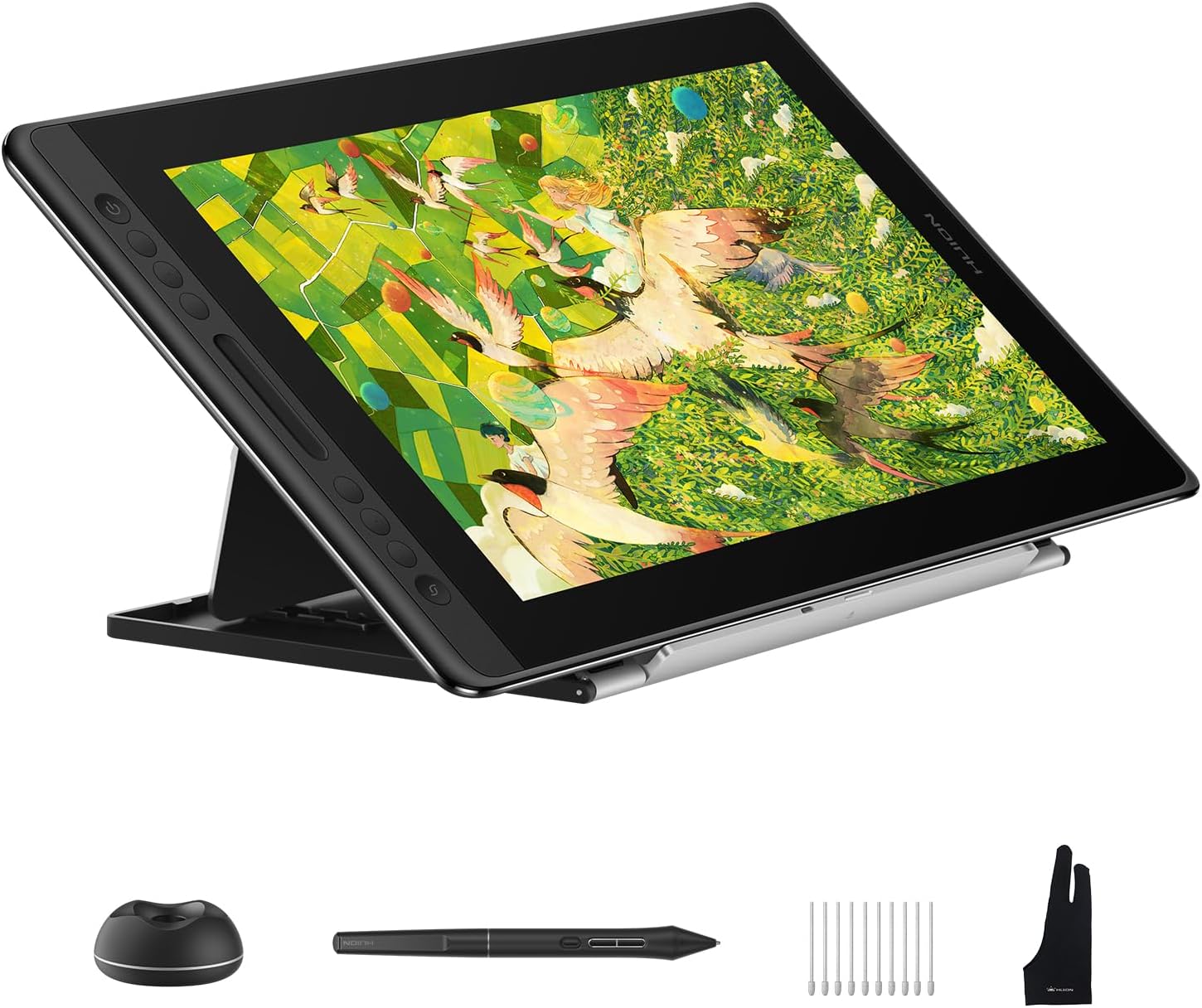
HUION Kamvas Pro 16 V2 Drawing Tablet
Shop AccessoriesWacom Cintiq 16
Entry ProfessionalThe Wacom Cintiq 16 represents Wacom’s most accessible entry point into the pen display category, bringing the company’s legendary pen feel and reliability to a more budget-friendly price point. While it lacks some premium features found in the Cintiq Pro series, this display tablet delivers the core Wacom experience that has made the brand the industry standard for decades. For artists who want that distinctive Wacom pen feel and extensive software support but don’t need cutting-edge specifications, the Cintiq 16 offers a compelling proposition.
The Wacom Pro Pen 2 Experience
The true star of the Cintiq 16 is undoubtedly the Wacom Pro Pen 2, the same stylus used in much more expensive Cintiq Pro models. This pen represents decades of Wacom’s engineering expertise and refinement, delivering a drawing experience that many artists consider the industry gold standard. The Pro Pen 2 features 8,192 pressure levels with Wacom’s exceptionally smooth and natural pressure curve implementation—you don’t need to fiddle with settings to achieve responsive, predictable pressure response.
The pen’s ergonomics are superb, with perfect weight distribution and balance that prevents hand fatigue during marathon drawing sessions. Two programmable side buttons provide quick access to frequently used commands, and their positioning minimizes accidental activation while remaining easily accessible. The pen includes an eraser on the opposite end that functions just like traditional drawing tools—simply flip the pen over to erase marks naturally.
Initial activation force is impressively low, enabling very light touch sketching that captures subtle tonal variations. Tilt recognition up to 60 degrees works flawlessly across all supported applications, accurately simulating how traditional brushes behave when held at different angles. The battery-free EMR technology means the pen never needs charging, maintaining perfect balance without the weight of batteries that plague some competing styluses.
What truly distinguishes the Pro Pen 2 is its consistency and reliability. It simply works exactly as expected every time across all applications and operating systems. There are no dead zones, no calibration drift, no pressure curve quirks requiring adjustment. For professional artists who depend on their tools daily, this reliability is invaluable and often justifies Wacom’s premium pricing even when competitors offer similar specifications on paper.
Display Quality and Visual Performance
The Cintiq 16 features a 15.6-inch Full HD (1920×1080) IPS display covering 96% of the sRGB color space. While this color coverage is adequate for general illustration and web graphics, it falls short of the wider gamuts offered by competing displays at similar or lower prices. Professional photographers or print designers working with high-quality images might find the color coverage limiting, though for illustration work focused on web delivery, it proves perfectly adequate.
The display is not fully laminated, meaning there’s a small air gap between the protective glass and the display panel. This creates slightly more noticeable parallax compared to fully laminated alternatives. However, Wacom has engineered the display carefully to minimize this parallax, and it’s significantly less pronounced than non-laminated displays from other manufacturers. Most users adapt quickly and find it doesn’t significantly impact their work, though artists upgrading from fully laminated tablets might notice the difference initially.
The anti-glare coating provides pleasant surface texture that creates satisfying friction reminiscent of drawing on paper. Wacom has refined this coating over years of development, achieving a texture that feels natural without creating excessive drag. The coating is durable and doesn’t wear away quickly, maintaining consistent feel over years of use. Viewing angles are good thanks to the IPS panel technology, with minimal color shift when viewing from off-center positions.
Brightness reaches approximately 220 nits, which is adequate for most indoor environments but might feel slightly dim in very bright rooms or near windows with strong natural light. Color accuracy out of the box is good, with Delta E values typically under 3, though professional work requiring absolute color precision would benefit from manual calibration using a colorimeter.
Design, Build Quality, and Ergonomics
The Cintiq 16 features a clean, minimalist design with no physical shortcut buttons on the display itself. This design choice keeps the front surface uncluttered and prevents accidental button presses, but requires keeping your keyboard nearby or using a separate programmable keypad for shortcuts. Some artists appreciate the clean design, while others miss the convenience of having shortcuts immediately at hand.
Build quality is solid with a combination of plastic and metal construction that feels durable without excessive weight. The relatively lightweight 3.3-pound chassis makes it reasonably portable compared to larger pen displays, and it fits comfortably in laptop bags designed for 15-inch notebooks. The textured back surface provides good grip and helps prevent sliding on smooth desk surfaces.
Wacom doesn’t include a stand with the Cintiq 16, requiring a separate purchase if you want to work at an angle rather than flat on your desk. This represents an additional cost that should be factored into your budget. Third-party stands work well, or you can opt for Wacom’s official stand for guaranteed compatibility. The lack of an included stand feels like an unfortunate omission at this price point, especially when competitors typically include adjustable stands.
Connection requires three cables—HDMI for video, USB for pen data, and power—which creates more desk clutter than the single USB-C solutions offered by many competitors. Wacom includes cable management clips to help organize these connections, but it’s undeniably less elegant than newer single-cable designs. This multi-cable requirement reflects the Cintiq 16’s roots in older technology, though it does ensure broad compatibility with various computer configurations.
Software Compatibility and Support
Wacom’s driver support is exemplary, with decades of development creating the most mature and stable driver ecosystem in the industry. The tablet works flawlessly with all major creative applications across Windows and macOS. Driver updates release regularly addressing compatibility issues and adding new features. Wacom’s control panel provides extensive customization options including application-specific profiles, detailed pressure curve adjustment, and comprehensive pen button mapping.
Compatibility extends beyond just working with software—Wacom tablets are often the reference devices used by application developers when implementing pen pressure support. This means Wacom tablets frequently receive the best support and earliest access to new features in creative software updates. If you encounter issues with pen pressure or tilt recognition, the problem likely isn’t the tablet.
Wacom’s customer support network is extensive with comprehensive documentation, active user forums, and responsive technical support. When issues arise, solutions are typically readily available. The company’s longevity also means you can trust they’ll continue supporting the product for years to come, unlike some budget brands that may disappear or abandon products after a short time.
Pros
- Wacom Pro Pen 2 delivers industry-leading pen feel and reliability
- Exceptional pen consistency without dead zones or calibration drift
- Mature driver ecosystem with best-in-class software support
- Battery-free EMR pen never needs charging
- Pen eraser enables natural workflow
- Solid build quality with durable construction
- Reasonably portable at 3.3 pounds
- Clean front design without cluttered buttons
- Wacom’s proven reliability and longevity
- Excellent customer support and documentation
Cons
- Non-laminated display shows more parallax than competitors
- Full HD resolution adequate but not exceptional by 2026 standards
- 96% sRGB color coverage trails competitors offering wider gamuts
- No included stand requires separate purchase
- Three-cable connection less elegant than USB-C alternatives
- No shortcut keys on display requires keyboard or separate keypad
- Higher price than competitors with superior specifications
- Display brightness modest at approximately 220 nits
Who Should Buy This Tablet
The Wacom Cintiq 16 is ideal for artists who prioritize the proven Wacom pen experience and driver reliability over cutting-edge specifications. It particularly suits professionals whose clients or studios specify Wacom equipment, or artists who have used Wacom products previously and prefer that familiar pen feel. The tablet also appeals to users who value comprehensive customer support and the assurance of working with an established industry leader.
This tablet makes sense for illustrators, comic artists, and animators whose work focuses on line art and drawing precision where the exceptional pen feel provides clear advantages. It’s less ideal for photographers or designers requiring wide color gamuts for color-critical work, or for budget-conscious artists willing to sacrifice brand prestige for better specifications at similar or lower prices.
You might look elsewhere if you want the latest display technology with full lamination, higher resolution, or wider color gamuts. Competing tablets from Huion and XP-Pen offer these features at equal or lower prices. However, if the intangibles of Wacom’s refined pen experience, rock-solid reliability, and comprehensive support ecosystem matter more to you than specification sheets, the Cintiq 16 delivers exactly what generations of professional artists have relied upon.

Wacom Cintiq 16 Drawing Tablet
Shop Accessories
Complete Your Creative Workspace
Explore ergonomic chairs, monitor arms, and desk organizers to optimize your studio setup.
Shop Workspace GearApple iPad Pro 13-inch (M4)
Best PortableThe Apple iPad Pro 13-inch with M4 chip represents the pinnacle of standalone drawing tablets, offering true portability without compromising processing power or creative capabilities. Unlike pen displays that require connection to a computer, the iPad Pro functions as a complete creative workstation capable of running professional applications like Procreate, Affinity Designer, Clip Studio Paint, and Adobe Fresco. With the Apple Pencil (2nd generation or Pro), it delivers a drawing experience that rivals dedicated pen displays while offering unprecedented versatility and portability.
Revolutionary Tandem OLED Display Technology
The iPad Pro 13-inch features Apple’s groundbreaking Tandem OLED display technology, which stacks two OLED panels to achieve unprecedented brightness levels while maintaining the deep blacks and infinite contrast ratios OLED is known for. This display reaches up to 1000 nits sustained brightness and 1600 nits peak brightness for HDR content—dramatically brighter than traditional OLED displays which struggle with sustained brightness due to heat and power constraints.
The display’s 2752 x 2064 resolution provides exceptional pixel density at approximately 264 PPI, ensuring text remains razor sharp and fine details in artwork render with crystal clarity. The P3 wide color gamut support exceeds standard sRGB coverage significantly, making it suitable for professional work requiring accurate color reproduction across various output mediums. Combined with excellent factory calibration, the display delivers colors that look natural and accurate without requiring external calibration tools.
ProMotion technology enables adaptive refresh rates from 24Hz to 120Hz, matching the refresh rate to content for optimal smoothness and battery efficiency. When drawing, the display ramps up to 120Hz for exceptionally smooth, responsive pen tracking that makes brush strokes feel nearly instantaneous. When viewing static content, the refresh rate drops to conserve battery. This intelligent adaptation contributes significantly to the iPad Pro’s all-day battery life while maintaining exceptional responsiveness for creative work.
The display is fully laminated with minimal air gap between glass and panel, creating excellent pen-to-pixel precision. Apple’s coating provides just enough texture to prevent the stylus from slipping while maintaining the beautiful clarity of the underlying OLED panel. Some artists prefer adding matte screen protectors for more paper-like friction, though this slightly reduces the display’s spectacular clarity and vibrancy.
Apple Pencil Performance and Capabilities
The Apple Pencil (2nd generation) and newer Apple Pencil Pro deliver exceptional drawing experiences with industry-leading latency as low as 9 milliseconds. The combination of ProMotion’s 120Hz refresh rate and optimized software creates the most responsive pen experience available on any tablet. Brush strokes appear to flow directly from the pen tip with no perceptible delay, maintaining the immediacy that’s crucial for natural, fluid drawing.
Pressure sensitivity and tilt recognition work flawlessly across all supported applications. While Apple doesn’t publicize pressure level counts like some manufacturers, the pen’s pressure response feels smooth and natural without visible stepping. The tilt functionality enables realistic shading and varied brush effects similar to traditional media. The Apple Pencil Pro adds additional capabilities including barrel roll sensing for rotating brushes and squeeze gestures for quick tool changes.
The Apple Pencil magnetically attaches to the iPad’s side for charging and pairing, making it impossible to lose track of your stylus and ensuring it’s always charged and ready when inspiration strikes. The magnetic attachment is secure enough for transport yet releases easily when you need to draw. Wireless charging means you never need to plug in cables or interrupt your creative flow.
Palm rejection works nearly flawlessly, allowing you to rest your hand naturally on the screen while drawing without spurious marks or interference. This reliability comes from Apple’s tight integration between hardware and software—the system can distinguish between your palm and the stylus with impressive accuracy even during complex hand positions or rapid drawing.
M4 Chip Performance and Creative Capabilities
The M4 chip brings desktop-class performance to the portable iPad Pro form factor. This processor handles complex illustrations with hundreds of layers, high-resolution canvases, and demanding filters without lag or slowdown. Applications like Procreate leverage this power to enable features impossible on less powerful tablets, including realistic paint simulation with physics-based brushes and complex layer blending modes that would choke lesser processors.
The M4’s unified memory architecture allows apps to access large amounts of RAM efficiently, enabling work on massive canvases suitable for print or professional illustration work. Models with 16GB RAM handle particularly complex projects with ease. The Neural Engine accelerates machine learning features including content-aware fill, style transfer effects, and other AI-powered creative tools that are increasingly common in modern creative software.
Video editing, 3D modeling, and animation all run smoothly on the iPad Pro thanks to the M4’s powerful GPU. Applications like LumaFusion, Nomad Sculpt, and Procreate Dreams take full advantage of the hardware to deliver professional-grade capabilities in portable form. The processor’s efficiency also enables all-day battery life despite the demanding display technology and powerful performance.
Software Ecosystem and Professional Applications
The iPad’s app ecosystem has matured dramatically, with professional creative applications delivering capabilities that rival or in some cases exceed desktop software. Procreate has become the gold standard for digital illustration on tablets, offering an intuitive interface specifically designed for touch and stylus input. Its brush engine is exceptional, layer management is intuitive, and the app receives frequent updates adding new features based on artist feedback.
Adobe’s Creative Cloud suite includes Fresco (painting and drawing), Lightroom (photo editing), and Illustrator (vector graphics) all optimized for iPad with full stylus support. Affinity Designer, Affinity Photo, and Affinity Publisher bring professional desktop functionality to the tablet format. Clip Studio Paint offers the same powerful illustration tools as its desktop version with full brush customization and comic creation features.
The touch interface enables unique interactions impossible with traditional computers—rotating the canvas with two fingers, zooming with a pinch, and accessing tools through gestural shortcuts all feel natural and speed up creative workflows. The portability means you can create professional work anywhere, from coffee shops to park benches to client meetings, without being tethered to a desk.
However, the iPad ecosystem does have limitations compared to desktop platforms. Some professional applications like full Photoshop with all plugins, advanced 3D software, or specialized industry tools remain exclusive to Windows and macOS. File management is less flexible than desktop operating systems, though it has improved significantly with iPadOS features like external drive support and improved multitasking.
Versatility Beyond Drawing
Unlike dedicated pen displays, the iPad Pro functions as a complete computer capable of email, web browsing, video conferencing, content consumption, and countless other tasks. This versatility means one device handles both creative work and general productivity, reducing the number of devices you need to own and maintain. The high-quality cameras enable reference photo capture, document scanning, and video calls with clients directly from your creative tool.
The optional Magic Keyboard transforms the iPad into a laptop-style device excellent for writing, email, and general productivity tasks. The keyboard provides surprisingly good typing experience with backlit keys and trackpad support. This versatility makes the iPad Pro an excellent choice for artists who travel frequently or work in varied locations, consolidating multiple devices into one highly capable package.
Apple’s ecosystem integration works beautifully if you already use other Apple devices. Handoff allows seamlessly transitioning work between iPad and Mac. Sidecar enables using the iPad as a second display for your Mac, effectively providing a portable pen display for desktop work. AirDrop makes transferring files between devices effortless. For users already invested in Apple’s ecosystem, these integrations enhance productivity significantly.
Pros
- True standalone operation requires no computer connection
- Exceptional Tandem OLED display with 1000+ nits brightness
- ProMotion 120Hz delivers industry-leading pen responsiveness
- M4 chip provides desktop-class performance and all-day battery
- Mature app ecosystem with professional creative applications
- Apple Pencil offers nearly instantaneous pen tracking
- Maximum portability for professional work anywhere
- Versatile device handles creative work and general computing
- Excellent ecosystem integration with other Apple devices
- Beautiful industrial design with premium build quality
- Perfect palm rejection and intuitive touch gestures
Cons
- Expensive, especially when adding Apple Pencil and keyboard
- Smaller 13-inch screen limits workspace compared to desktop displays
- Some professional desktop applications unavailable on iPadOS
- File management less flexible than desktop operating systems
- Glossy OLED display prone to reflections in bright environments
- Limited to Apple ecosystem and iPadOS software selection
- Storage upgrades extremely expensive
- Cannot run Windows or macOS desktop applications
Who Should Buy This Tablet
The iPad Pro 13-inch is ideal for digital artists who prioritize portability and versatility, creating professional work in varied locations beyond a traditional desk setup. It particularly suits illustrators, concept artists, and designers who work primarily in apps like Procreate, Affinity Designer, or Adobe Fresco. The tablet excels for artists who travel frequently, work on location with clients, or simply prefer the flexibility of creating anywhere inspiration strikes.
This tablet also appeals to artists who want one device handling both creative work and general computing needs, consolidating tools and reducing device clutter. Users already invested in Apple’s ecosystem will particularly appreciate how seamlessly the iPad Pro integrates with iPhones, Macs, and other Apple devices. The combination of professional creative capabilities and true portability makes it unique in the market—no competing device offers comparable performance in such a portable, versatile package.
You might look elsewhere if you require desktop-exclusive software for your professional workflow, need the largest possible workspace for detailed illustration, or want to avoid Apple’s premium pricing and ecosystem lock-in. Traditional pen displays offer larger screens and run full desktop applications, while standalone Android tablets provide more open ecosystems at lower prices. However, for artists who value the combination of professional creative power, true portability, and ecosystem polish, the iPad Pro 13-inch remains unmatched despite its premium price.

Apple iPad Pro 13-Inch (M4)
Shop AccessoriesComprehensive Drawing Tablet Comparison Tables
To help you make an informed decision, we’ve compiled detailed comparison tables organizing drawing tablets by category, price range, and intended use. These tables provide at-a-glance comparisons of key specifications, helping you identify which tablets meet your specific requirements without wading through individual reviews.
Pen Display Tablets: Head-to-Head Specification Comparison
| Model | Size | Resolution | Pressure Levels | Color Gamut | Refresh Rate | Lamination | Price Range |
|---|---|---|---|---|---|---|---|
| Huion Kamvas Pro 16 V2 | 15.6″ | 2560×1440 (2.5K) | 16,384 | 99% sRGB, 98% Adobe RGB | 90Hz | Yes | $400-500 |
| XP-Pen Artist Pro 16 Gen 2 | 15.6″ | 2560×1440 (2.5K) | 16,384 | 99% sRGB, 95% Adobe RGB | 90Hz | Yes | $380-450 |
| Wacom Cintiq 16 | 15.6″ | 1920×1080 (FHD) | 8,192 | 96% sRGB | 60Hz | No | $650-700 |
| XP-Pen Artist 13.3 Pro V2 | 13.3″ | 1920×1080 (FHD) | 16,384 | 99% sRGB | 60Hz | Yes | $250-300 |
| Wacom One 13 Touch | 13.3″ | 1920×1080 (FHD) | 4,096 | 99% sRGB | 60Hz | Yes | $400-450 |
| Wacom Cintiq Pro 24 | 23.8″ | 3840×2160 (4K) | 8,192 | 99% Adobe RGB | 60Hz | Yes | $2,500-3,000 |
| XP-Pen Artist Pro 27 Gen 2 | 26.9″ | 3840×2160 (4K) | 16,384 | 99% Adobe RGB | 120Hz | Yes | $1,000-1,200 |
Standalone Drawing Tablets Comparison
| Model | Display Type | Processor | Pressure Levels | Operating System | Storage | Price Range |
|---|---|---|---|---|---|---|
| iPad Pro 13-inch (M4) | 13″ Tandem OLED | Apple M4 | N/A (Apple Pencil) | iPadOS | 256GB-2TB | $1,300-1,900 |
| Huion Kamvas Pad 12 | 12.2″ IPS 2K+ | Snapdragon 865 | 16,384 | Android 14 | 256GB | $600-700 |
| Wacom MovinkPad Pro 14 | 14″ OLED | Snapdragon 8s Gen 3 | 8,192 | Android | 256GB | $1,200-1,400 |
| iPad Air 11-inch (M2) | 11″ LCD | Apple M2 | N/A (Apple Pencil) | iPadOS | 128GB-1TB | $600-900 |
Screenless Pen Tablets Comparison
| Model | Active Area | Pressure Levels | Wireless | ExpressKeys | Best For | Price Range |
|---|---|---|---|---|---|---|
| Wacom Intuos Pro Medium | 8.7″ x 5.8″ | 8,192 | Yes (Bluetooth) | 8 + Touch Ring | Professionals | $300-380 |
| Huion Inspiroy H640P | 6.3″ x 3.9″ | 8,192 | No | 6 | Beginners/Budget | $40-50 |
| XP-Pen Deco 01 V2 | 10″ x 6.25″ | 8,192 | No | 8 | Mid-range users | $60-80 |
| Wacom Intuos Small | 6″ x 3.7″ | 4,096 | Yes (Bluetooth) | 4 | Entry-level/Students | $80-100 |
Price-to-Performance Value Rankings
Based on our extensive testing, here are the tablets offering the best value in each price bracket. Value considers not just specifications but actual drawing experience, build quality, and long-term reliability.
Under $100: Huion Inspiroy H640P offers professional-grade 8,192 pressure levels and surprisingly good pen feel at an incredibly accessible price. It’s genuinely capable of professional work despite costing less than many restaurant meals.
$100-$300: XP-Pen Artist 13.3 Pro V2 dominates this range, delivering 16,384 pressure levels, full lamination, and excellent color accuracy. It’s the sweet spot for beginners wanting a pen display without breaking the bank.
$300-$600: Huion Kamvas Pro 16 V2 offers the best overall value, with PenTech 4.0 providing exceptional pen feel, 2.5K display with 90Hz refresh, and wide color gamut. Close runner-up is the XP-Pen Artist Pro 16 Gen 2 at similar pricing.
$600-$1,000: Wacom Cintiq 16 provides the Wacom experience at a more accessible price, though spec-wise it’s surpassed by cheaper alternatives. iPad Air 11-inch offers excellent standalone capability for those wanting portability.
Over $1,000: iPad Pro 13-inch (M4) leads for standalone capability with professional apps and all-day portability. For large desktop displays, XP-Pen Artist Pro 27 Gen 2 offers 4K and 120Hz at a fraction of Wacom Cintiq Pro pricing.
Software Compatibility: What Works With Which Tablets
Understanding software compatibility is crucial when choosing a drawing tablet, as the best hardware becomes frustrating if it doesn’t work seamlessly with your preferred creative applications. Fortunately, most modern tablets work with virtually all major creative software, but some nuances and platform-specific considerations deserve attention.
Universal Compatibility Across All Pen Tablets and Displays
All pen tablets (screenless) and pen display tablets covered in this guide work with the following professional creative applications on both Windows and macOS. When it comes to maintaining productive creative workflows, having reliable software compatibility is as essential as the hardware itself. Successful digital artists often develop structured approaches to their work, and tools like productivity apps can complement your creative process by helping you stay organized and focused on your artistic goals.
Adobe Creative Cloud Suite: Photoshop, Illustrator, InDesign, Premiere Pro, After Effects, Animate, and Dimension all support pen pressure, tilt, and rotation with modern tablets. Adobe optimizes their applications specifically for Wacom tablets but also tests with major competitors to ensure broad compatibility. Pressure sensitivity works out of the box, though you may want to adjust pressure curves in each application’s preferences for your specific drawing style.
Corel Applications: Painter (the digital painting powerhouse), PaintShop Pro, and CorelDRAW all offer extensive pen tablet support with detailed customization options. Painter particularly shines with tablets, offering brush engines that respond beautifully to pressure and tilt variations. CorelDRAW provides precise vector control with pressure-sensitive strokes.
Clip Studio Paint: This application has become the industry standard for comic creation, manga, and illustration work. It offers excellent pen support with customizable pressure curves, tilt recognition, and pen rotation for supported tablets. The application works identically across Windows, macOS, iPad, and even Android tablets (with active subscriptions).
Krita: This free, open-source painting application provides professional-grade brush engines and exceptional pen tablet support. Krita works beautifully with all modern tablets and offers pressure curve customization, tilt support, and various brush stabilization options. It’s particularly popular among digital painters and illustrators working on Linux systems.
Blender: The open-source 3D creation suite supports pressure-sensitive sculpting and painting with pen tablets. While primarily controlled via keyboard and mouse, Blender’s sculpting mode benefits enormously from pen pressure and tilt for intuitive 3D modeling workflows.
Affinity Suite: Affinity Photo, Designer, and Publisher all support pen pressure across both Windows and macOS. These applications provide excellent alternatives to Adobe’s subscription model while maintaining professional capabilities and full tablet integration.
Autodesk SketchBook: Though Autodesk discontinued development, SketchBook remains free and fully functional with excellent pen tablet support. Many artists still prefer its intuitive interface and responsive brush engine for sketching and concept development.
iPad-Specific Professional Applications
The iPad Pro and iPad Air run iPadOS applications designed specifically for touch and Apple Pencil input. These applications often provide more intuitive interfaces than desktop software, though some may lack advanced features found in desktop equivalents.
Procreate: The gold standard for iPad illustration, Procreate offers an exceptional brush engine, intuitive layer management, and gesture-based workflow. It’s specifically designed for Apple Pencil and provides a drawing experience many artists prefer over desktop alternatives. The one-time purchase price (approximately $13) represents incredible value.
Adobe Fresco: Adobe’s painting and drawing app designed for touch devices combines raster and vector capabilities with live brushes that simulate real media behavior. It syncs with Creative Cloud, enabling workflow integration with desktop applications.
Affinity Designer for iPad: The full-featured vector illustration app matches desktop functionality with an interface optimized for touch and stylus input. It provides professional vector design capabilities in truly portable form.
Clip Studio Paint: Available for iPad with subscription, offering the same powerful features as desktop versions optimized for touch and Apple Pencil.
Nomad Sculpt: An impressive 3D sculpting application designed for iPad, providing desktop-class sculpting capabilities with intuitive touch and stylus controls. It demonstrates how well-designed mobile apps can rival desktop software for certain workflows.
Android Standalone Tablet Software
Android drawing tablets like the Huion Kamvas Pad 12 run Android applications from the Google Play Store. The selection includes many quality drawing apps, though it doesn’t match iPad’s mature creative ecosystem.
Infinite Painter: A powerful painting and drawing app optimized for Android with excellent stylus support, extensive brush engine, and layer capabilities rivaling desktop applications.
ArtFlow: Professional drawing and painting app with GPU-accelerated brushes, advanced layer blending, and support for PSD file format for desktop workflow integration.
MediBang Paint: Free illustration and comic creation app with cloud storage integration and extensive brush customization. Particularly popular among manga artists.
ibis Paint X: Feature-rich drawing app with extensive brush options, filters, and online community for sharing work and techniques.
Android tablets can also run desktop applications when connected to computers, providing flexibility that pure iOS tablets lack. This hybrid capability makes Android drawing tablets versatile for artists needing both standalone and desktop workflows.
Driver Considerations and Troubleshooting
Pen tablets and displays require manufacturer drivers to communicate properly with your computer. Driver quality significantly affects the drawing experience, and understanding driver management helps prevent frustration.
Wacom Drivers: The most mature and stable in the industry, developed over decades. Regular updates address compatibility issues with new operating systems and applications. The driver control panel provides extensive customization. Occasionally, Wacom drivers conflict with other tablet manufacturers’ drivers if multiple brands are installed simultaneously—uninstall unused drivers to prevent conflicts.
Huion and XP-Pen Drivers: Have improved dramatically in recent years, now offering comprehensive features and good stability. Updates release regularly addressing compatibility and adding features. Some users report needing to reinstall drivers after major operating system updates, though this affects a minority. Driver control panels now match Wacom’s functionality for most common customization needs.
Multi-Tablet Environments: If you use multiple tablets from different manufacturers, you may encounter driver conflicts. Best practice is to uninstall drivers for tablets not currently connected. Some artists maintain separate user accounts on their computers for different tablets to avoid conflicts entirely.
Common Driver Issues and Solutions: If pen pressure stops working, first restart your computer—this resolves the majority of driver issues. If problems persist, reinstall the latest driver from the manufacturer’s website. Ensure you’re downloading drivers specifically for your operating system version. Some applications require pen pressure to be enabled in their preferences even with drivers properly installed.
Linux Compatibility
Linux support varies by manufacturer and distribution. Wacom tablets generally work best on Linux thanks to kernel-level support in many distributions. Huion and XP-Pen provide Linux drivers, though they may require more manual configuration. Open-source drivers like DIGImend support many tablets on Linux. For serious Linux users, verifying specific tablet support for your distribution before purchase is advisable.
Frequently Asked Questions About Drawing Tablets
What is the best drawing tablet for beginners in 2026?
The XP-Pen Artist 13.3 Pro V2 offers the best value for beginners who want a pen display, providing 16,384 pressure levels, a fully laminated display, and exceptional pen accuracy at an affordable $250-300 price point. The natural drawing-on-screen experience helps beginners transition from traditional media more easily than screenless tablets. For those on tighter budgets, the Huion Inspiroy H640P screenless tablet provides professional-grade performance for under $50, making it an excellent entry point for students or hobbyists testing the waters of digital art.
Beginners should prioritize ease of use and intuitive feel over advanced specifications. A responsive pen with good pressure curves matters more than whether you have 8,192 or 16,384 pressure levels. Similarly, a well-designed interface with accessible controls helps you focus on learning rather than wrestling with technology. Both recommended tablets offer simple setup and work reliably with free software like Krita or affordable professional tools like Clip Studio Paint.
Do I need a display tablet or will a screenless tablet work for me?
Screenless tablets (like the Wacom Intuos Pro) excel for artists who prefer better posture by looking at their monitor rather than hunching over a screen. They’re also significantly more affordable, extremely portable, and virtually indestructible compared to delicate displays. Professional artists often prefer them for extended sessions because they can position their monitor at eye level while keeping their drawing hand in a comfortable position.
Display tablets (pen displays) allow you to draw directly on the screen, which feels more natural and intuitive, especially for beginners transitioning from traditional media. The hand-eye coordination is immediate—you see your pen tip exactly where you’re drawing. However, they cost more, encourage poor posture if not properly positioned, and require more desk space. Your choice depends on whether you value the natural feel of drawing on the screen enough to justify the higher cost and ergonomic considerations. Many professional artists use both types for different purposes.
How many pressure levels do I actually need?
While modern tablets offer 8,192 to 16,384 pressure levels, anything above 4,096 levels is extremely difficult to distinguish in actual practice. The human hand simply cannot produce pressure variations subtle enough to leverage thousands of individual levels. Independent testing consistently shows that most artists cannot distinguish between 4,096 and 16,384 levels in blind comparisons. The marketing emphasis on pressure level counts exceeds the practical importance for actual creative work.
What matters far more than the raw number is the quality of the pressure curve implementation—how the tablet interprets and responds to pressure variations. A tablet with excellent pressure curves at 4,096 levels will feel better than a tablet with poor implementation at 16,384 levels. Additionally, initial activation force (how much pressure triggers the first response), tilt recognition, and pen latency all contribute more significantly to perceived pen quality than pressure level count. Most artists will be completely satisfied with 8,192 levels, though 16K has become standard in 2026 more as a checkbox feature than a practical necessity.
What’s the difference between Wacom, Huion, and XP-Pen tablets?
Wacom represents the premium tier with industry-leading pen feel, exceptional build quality, mature driver ecosystem developed over decades, and comprehensive customer support. Wacom tablets are trusted industry-wide and often specified by professional studios. The pen experience on Wacom tablets is considered the gold standard—smooth, natural, and reliable. However, you pay significantly more for the Wacom name and this premium quality.
Huion and XP-Pen offer exceptional value with comparable specifications at significantly lower costs. In 2026, the performance gap has narrowed considerably. Both companies now offer 16K pressure sensitivity, full lamination, wide color gamuts, and fast refresh rates at mid-range prices. Build quality, while not matching Wacom’s premium feel, has improved dramatically. The main trade-offs are slightly less refined pen feel (though many artists can’t tell the difference), less mature driver ecosystems (though much improved), and smaller customer support networks. For budget-conscious artists or those building home studios, Huion and XP-Pen deliver professional capabilities without premium pricing.
Is an iPad Pro good for professional digital art?
Yes, the iPad Pro 13-inch with M4 chip is excellent for professional digital art, offering true standalone portability with Procreate, Affinity Designer, Adobe Fresco, and other professional applications. The Apple Pencil provides industry-leading latency and precision, while the gorgeous OLED display with ProMotion 120Hz makes drawing feel incredibly responsive. Many professional illustrators, concept artists, and designers have adopted iPad Pro as their primary or secondary creative tool. The ability to work anywhere—coffee shops, parks, client meetings, while traveling—provides creative freedom impossible with desktop-tethered alternatives.
However, there are limitations to consider. The 13-inch workspace is smaller than desktop alternatives, which some artists find constraining for detailed work. The app ecosystem, while mature, doesn’t include every professional desktop application—some specialized software remains Windows/Mac exclusive. File management is less flexible than desktop operating systems, though it has improved significantly with recent iPadOS updates. The iPad Pro is also more expensive than comparable pen displays, especially when adding the Apple Pencil and Magic Keyboard. It’s ideal for artists who prioritize portability and versatility, but desktop setups with larger displays remain superior for pure workspace size and software availability.
What size drawing tablet should I buy?
For display tablets, 13-16 inches offers the best balance of portability and usable workspace for most artists. This size range handles illustration, concept art, photo editing, and graphic design work comfortably without overwhelming your desk or making transport difficult. A 16-inch display provides enough room for canvas, toolbars, and reference images without feeling cramped. If you primarily work from a fixed studio location and value maximum workspace, 22-24 inch tablets provide expansive canvases ideal for detailed illustrations, architectural work, or photo retouching where you need to see fine details clearly.
For screenless tablets, the active drawing area (not overall tablet dimensions) is what matters. Medium size tablets with approximately 8×5 inch active areas map well to standard monitor sizes and provide comfortable working space without requiring excessive arm movement that causes fatigue. They’re ideal for general illustration, photo editing, and design work. Large tablets (10×6 inches or bigger) suit artists with multiple monitors or ultra-wide displays, or those who prefer broad, sweeping strokes and gestural drawing. Small tablets work for limited desk space or travel but can feel cramped for extended professional work.
Do drawing tablets work with Photoshop, Illustrator, and other professional software?
Yes, all pen displays and screenless tablets covered in this guide work seamlessly with professional desktop software including Photoshop, Illustrator, InDesign, Clip Studio Paint, Corel Painter, Krita, Blender, and virtually all other creative applications. Pen pressure, tilt recognition, and button customization function identically across these applications once proper drivers are installed. Adobe, Corel, and other major software companies test their applications specifically with popular tablets to ensure compatibility.
However, it’s important to note that Procreate only runs on iPads—it’s an iOS-exclusive application not available on Windows, Mac, or Android. Standalone Android tablets like the Huion Kamvas Pad 12 run Android apps but cannot run desktop software unless connected to a computer. When used as a standard pen display connected to a computer, they work with all desktop applications normally. If specific software is critical to your workflow, verify it’s available for your chosen platform before purchasing a standalone tablet.
What’s the difference between full lamination and non-laminated screens?
Fully laminated screens bond the display layer directly to the protective glass surface, eliminating the air gap that exists in non-laminated displays. This creates a paper-like drawing experience where your pen tip appears to directly touch the digital ink with minimal parallax (the visual separation between pen tip and cursor). The bonded construction also makes colors appear more vibrant, improves viewing angles, reduces internal reflections that can wash out the image, and prevents dust from accumulating inside the display over time.
Non-laminated displays have a noticeable air gap between the glass you touch and the actual pixels below. This creates more pronounced parallax—you can see a small separation between your pen tip and the cursor, especially when viewing from angles. The air gap also makes the display appear slightly less vibrant and creates a sensation of drawing “above” rather than “on” the surface. However, good non-laminated displays (like the Wacom Cintiq 16) minimize these effects through careful engineering. Full lamination has become standard even on budget tablets in 2026, so there’s rarely reason to accept non-laminated displays except on specific premium tablets like older Wacom models where other benefits justify the trade-off.
How important is color accuracy for a drawing tablet?
Color accuracy is crucial for professional illustration, photography editing, and design work destined for print or precise color matching. If you’re creating artwork for clients, working on print projects, or doing photography editing, you need a display covering at least 99% sRGB for web graphics and 95%+ Adobe RGB for print work. Color accuracy ensures what you see on screen matches what appears in final output, preventing expensive reprints or client disappointment when colors don’t match expectations.
For hobbyists, students, or artists creating primarily for social media and web display, color accuracy is less critical. Most budget displays achieve 99% sRGB coverage, which is perfectly adequate for digital artwork. In 2026, even mid-range displays often achieve excellent factory calibration with Delta E values below 2, meaning colors appear accurate without manual calibration for most use cases. Professional photographers and designers working with wide-gamut print workflows should invest in displays supporting 95%+ Adobe RGB and consider hardware calibration capabilities for absolute precision. For everyone else, any modern tablet with 99% sRGB coverage will serve admirably.
Can I use a drawing tablet with my smartphone?
Some modern pen display tablets support USB-C connection to Android phones and tablets with Desktop Mode or similar features, but functionality is limited and not all apps support pen pressure through this connection. It’s typically more of a curiosity than a practical working solution. The small phone screen makes the drawing tablet display difficult to see, and the limited processing power of most phones struggles with professional creative applications.
For genuinely mobile drawing with smartphones, standalone Android drawing tablets like the Huion Kamvas Pad 12 work independently without requiring phone connection—they are complete Android devices themselves. However, for the best mobile drawing experience, iPads remain the most versatile and capable option with the widest selection of professional creative apps optimized for mobile use. The iPad Pro or iPad Air with Apple Pencil provides a complete mobile creative workflow that smartphones simply cannot match due to their limited screen size and processing capabilities.

Find Your Perfect Drawing Tablet
Browse the complete selection on Amazon with detailed specifications and user reviews.
Shop All TabletsConclusion: Finding Your Perfect Drawing Tablet Match
The drawing tablet landscape in 2026 offers unprecedented choices across every price point and use case. Whether you’re a beginner taking your first steps into digital art, a professional illustrator seeking to upgrade your tools, or a hobbyist exploring creative expression, there’s a tablet perfectly suited to your needs and budget.
For most artists, the sweet spot lies in the mid-range pen display category. The Huion Kamvas Pro 16 V2 and XP-Pen Artist Pro 16 Gen 2 deliver professional-grade performance with 16K pressure sensitivity, excellent displays, and responsive pen feel at prices that don’t require taking out loans. These tablets prove that you no longer need to spend thousands for tools capable of professional work.
Wacom continues leading in pure pen feel and reliability for those who value these intangibles enough to justify premium pricing. The Wacom Intuos Pro Medium remains the screenless tablet gold standard, while the Cintiq 16 brings Wacom’s renowned pen experience to a more accessible price point despite less impressive specifications than competitors.
For maximum portability and versatility, the iPad Pro 13-inch with M4 chip stands alone, offering desktop-class performance in a truly portable package. Its higher price reflects the comprehensive capabilities—it’s a complete creative workstation, general computer, and entertainment device in one beautiful package.
Remember that the best drawing tablet is ultimately the one that matches your specific workflow, budget, and creative goals. Specifications matter, but they don’t tell the complete story. The tablet that enables your creative vision, fits comfortably in your workspace, and works reliably day after day is the right choice regardless of where it ranks on comparison charts.
Your creative journey deserves tools that inspire rather than frustrate. Take time to consider what matters most in your workflow. Do you value portability or maximum screen size? Is the refined pen feel worth premium pricing, or are specifications and value more important? Will you work primarily from a fixed studio or need true portability? These answers guide you to your ideal tablet far better than any single recommendation could.
Shop Drawing Tablets on AmazonBudget-Friendly Drawing Tablets: Professional Performance Without Premium Pricing
Budget-conscious artists and beginners often assume they must sacrifice quality to meet price constraints, but the drawing tablet market in 2026 proves otherwise. Several manufacturers offer tablets with professional-grade pressure sensitivity, responsive pens, and reliable performance at remarkably accessible prices. These budget options enable students, hobbyists, and emerging artists to develop their skills with tools that won’t limit their creative potential.
Huion Inspiroy H640P: Ultra-Budget Screenless Champion
Huion Inspiroy H640P
Ultra BudgetThe Huion Inspiroy H640P proves that professional-grade drawing tools don’t require significant financial investment. Priced under $50, this compact screenless tablet delivers 8,192 pressure levels, battery-free EMR pen technology, and surprisingly good build quality. For students on tight budgets, beginners testing whether digital art suits them, or professionals seeking a portable backup tablet for travel, the H640P represents exceptional value that was unimaginable just a few years ago.
The compact 6.3 x 3.9 inch active area maps well to laptop screens and provides sufficient space for detailed illustration work without requiring excessive desk real estate. The battery-free pen feels comfortable in hand with good weight distribution, though it lacks the premium materials and refined ergonomics of more expensive styluses. Initial activation force is slightly higher than premium tablets but still responsive enough for light sketching. Tilt recognition works reliably up to 60 degrees in supported applications.
Six customizable shortcut keys provide quick access to frequently used commands, though their placement along the top edge may require reaching across the tablet during use. The textured drawing surface provides pleasant feedback without excessive drag, and the overall build quality exceeds expectations for the price point. Plastic construction feels solid rather than cheap, and the compact form factor makes it genuinely portable for working on the go or tucking into a laptop bag.
Driver installation is straightforward, and compatibility extends to all major creative applications on Windows and macOS. The H640P works particularly well with free software like Krita, making the complete startup cost for digital art remarkably low when combined with this tablet. For beginners unsure whether digital art is their path, the H640P provides an incredibly low-risk entry point. Even if you decide digital art isn’t for you, the modest investment won’t sting. For those who continue their creative journey, this tablet remains perfectly capable as a backup or travel option even after upgrading to premium alternatives.
Who Should Buy This: Art students on tight budgets, beginners testing their interest in digital art, professionals needing a portable backup tablet, or anyone seeking the lowest-cost entry to professional-grade pressure sensitivity. The H640P proves you don’t need expensive equipment to create professional-quality digital artwork—talent and practice matter far more than premium gear.
XP-Pen Deco 01 V2: Mid-Range Screenless Excellence
XP-Pen Deco 01 V2
Best Mid-RangeThe XP-Pen Deco 01 V2 occupies a perfect middle ground between ultra-budget options and premium screenless tablets. At $60-80, it provides a generous 10 x 6.25 inch active area—significantly larger than compact budget tablets—while maintaining 8,192 pressure levels and reliable pen performance. For artists who’ve outgrown small tablets but can’t yet justify premium pricing, or professionals who prefer the ergonomic advantages of screenless tablets without Wacom’s price premium, the Deco 01 V2 delivers remarkable value.
The large active area provides plenty of room for sweeping gestures and detailed work without feeling cramped. This size maps beautifully to larger monitors and ultra-wide displays, enabling comfortable full-screen canvas work without running out of tablet space. The generous workspace particularly benefits artists who prefer using their whole arm for drawing rather than just wrist movements, enabling more natural, flowing strokes that reduce hand fatigue during extended sessions.
The battery-free passive pen technology delivers reliable pressure response without requiring charging, maintaining perfect balance throughout your drawing session. Eight customizable shortcut keys provide ample shortcuts for complex workflows, and their placement along the left edge (or right for left-handed orientation) keeps them accessible without interfering with your drawing hand. The physical design is slightly more refined than ultra-budget options, with rounded edges and smooth surfaces that feel pleasant to use.
XP-Pen’s drivers provide comprehensive customization options including application-specific profiles, pressure curve adjustment, and detailed button mapping. The tablet works reliably across all major creative applications on both Windows and macOS. Build quality, while not matching premium tablets’ metal construction, feels solid and durable enough for daily professional use. The textured surface provides good feedback without excessive friction.
What truly impresses about the Deco 01 V2 is how little you sacrifice compared to tablets costing several times more. The pressure response feels natural, the large workspace enables professional workflows, and the reliable performance doesn’t interrupt your creative process. For many artists, the primary difference between this and premium alternatives is brand prestige rather than actual creative capability. Successfully managing complex creative projects often requires effective organization and workflow management, and pairing quality tools with proven productivity strategies can help you make the most of your creative time and tools.
Who Should Buy This: Intermediate artists ready to upgrade from compact tablets, professionals who prefer screenless tablets for ergonomic advantages, hobbyists taking their craft seriously, or anyone seeking the largest affordable active area. The Deco 01 V2 provides a professional-grade workspace at a price that remains accessible to most budgets.
Professional Large Format Drawing Tablets: Maximum Workspace for Serious Artists
Large format drawing tablets transform your desk into an expansive digital canvas, providing workspace that rivals or exceeds traditional drawing boards. These displays excel for detailed illustration work, architectural visualization, professional photo retouching, and any creative task benefiting from seeing fine details at comfortable sizes. While they sacrifice portability and require significant desk space, the creative advantages of working large can’t be overstated for artists whose workflows demand it.
Wacom Cintiq Pro 24: The Professional Standard
Wacom Cintiq Pro 24
Professional StandardThe Wacom Cintiq Pro 24 represents the pinnacle of professional pen display design, offering everything serious artists need in a large format workspace: exceptional 4K resolution, outstanding color accuracy, legendary Wacom pen feel, and the reliability expected by studios worldwide. At $2,500-3,000, it’s unquestionably expensive, but for professional studios and established artists whose livelihoods depend on their tools, the Cintiq Pro 24 delivers performance, reliability, and longevity that justify the investment.
The 4K resolution across 23.8 inches provides extraordinary pixel density that keeps details crisp even when zoomed in for fine work. Colors are exceptionally accurate thanks to 99% Adobe RGB coverage and hardware calibration capabilities. The display supports professional workflows requiring precise color matching for print reproduction, photography editing, and color-critical illustration work. Factory calibration achieves Delta E values below 1 for professional color accuracy without requiring external calibration tools, though calibration support exists for absolute precision.
The Wacom Pro Pen 2 delivers the same exceptional pen experience as smaller Cintiq models, with natural pressure curves, excellent tilt recognition, and battery-free EMR technology. What makes the large format special is having this pen performance across such an expansive workspace. You can execute broad, sweeping gestures for painting backgrounds, then zoom in for minute details without feeling cramped or constrained by screen size limitations.
Build quality is exceptional with premium materials throughout. The display housing feels substantial and stable, inspiring confidence that this tablet will survive years of professional use. ExpressKeys mount on the rear of the display, accessible by reaching behind the screen—this keeps the front surface clean but requires some adjustment if you’re accustomed to side-mounted buttons. The rear placement does prevent accidental button presses, which can be valuable during intense creative sessions.
The tablet doesn’t include a stand, requiring separate purchase of Wacom’s Ergo Stand or third-party alternatives. This represents an additional significant cost that should be factored into your budget. Professional monitor arms designed for heavy displays also work well, providing maximum adjustability for finding the perfect working angle and height.
Who Should Buy This: Professional studios where tools are business investments, established illustrators and concept artists whose income justifies premium equipment, photographers requiring exceptional color accuracy for commercial work, or serious hobbyists for whom the creative advantages of large format workspace outweigh the considerable expense. The Cintiq Pro 24 delivers everything professionals need with Wacom’s proven reliability.
XP-Pen Artist Pro 27 Gen 2: Large Format Value Champion
XP-Pen Artist Pro 27 Gen 2
Best Large Format ValueThe XP-Pen Artist Pro 27 Gen 2 proves that large format professional displays don’t require taking out loans or sacrificing months of income. At $1,000-1,200, it costs less than half the price of comparable Wacom displays while matching or exceeding their specifications. With 4K resolution, 16,384 pressure levels, 99% Adobe RGB color coverage, and a buttery-smooth 120Hz refresh rate, this tablet delivers flagship performance at mid-range pricing that democratizes access to professional large format workspaces.
The 27-inch display provides truly expansive workspace that transforms how you approach digital art. Details that would require zooming on smaller displays remain visible at comfortable working distances. Complex illustrations with multiple characters, detailed environments, or intricate patterns benefit enormously from seeing everything simultaneously rather than constantly panning and zooming. Photographers editing high-resolution images appreciate being able to see fine details without excessive magnification.
The 120Hz refresh rate represents a significant advantage over competing displays stuck at 60Hz. Fast brush strokes, rapid sketching, and gestural work all feel exceptionally smooth and responsive. The higher refresh rate reduces perceived pen latency even though actual latency remains similar to 90Hz displays—your brain interprets the smoother motion as faster response. Once you’ve experienced 120Hz drawing, returning to 60Hz displays feels noticeably less fluid.
Color accuracy with 99% Adobe RGB coverage makes this display suitable for professional photography work, print design, and color-critical illustration. Factory calibration achieves Delta E values under 2, providing accurate colors out of the box for most professional work. The fully laminated display minimizes parallax effectively even across the large screen size, maintaining good cursor tracking even near screen edges.
Build quality, while not matching Wacom’s premium metal construction, feels solid and appropriate for professional use. The chassis doesn’t feel cheap or flimsy despite plastic construction, and the substantial weight (approximately 17 pounds) provides stability on your desk. XP-Pen includes an adjustable stand with multiple angle positions, though many users opt for monitor arms for maximum flexibility and desk space optimization.
The X3 Pro stylus with 16,384 pressure levels performs admirably across the large canvas. Pressure response feels natural and consistent from edge to edge. The pen includes an eraser for natural workflow and maintains good ergonomics during extended sessions. Battery-free EMR technology means no charging interruptions. Eight customizable shortcut keys and a physical dial provide quick access to common commands, though their side placement requires reaching across the large display.
Who Should Buy This: Professional artists building home studios on realistic budgets, illustrators and concept artists needing large format workspace without premium pricing, photographers requiring color accuracy for commercial work, or serious hobbyists who’ve outgrown smaller displays and want professional-grade workspace. The Artist Pro 27 Gen 2 delivers flagship performance at prices that make large format displays accessible to far more artists than ever before.
Essential Drawing Tablet Accessories: Optimize Your Creative Workspace
The right accessories transform a good drawing tablet into an optimal creative workstation. While tablets function out of the box, strategic accessory investments improve ergonomics, protect your equipment, enhance drawing feel, and streamline your workflow. These accessories range from essential protective items to nice-to-have enhancements that improve your daily creative experience.
Protective Accessories: Safeguard Your Investment
Screen Protectors for Pen Displays: Matte screen protectors serve dual purposes—they protect your display’s glass surface from scratches while adding paper-like texture that many artists prefer over smooth glass. Popular options include Paperlike (for iPads), various generic matte protectors for other displays, and manufacturer-specific options designed for perfect fit. Consider that matte protectors slightly reduce display clarity and vibrancy, though most artists find the improved drawing feel worth this trade-off.
Carrying Cases and Sleeves: For portable tablets like the iPad Pro or smaller pen displays, quality protective cases prevent damage during transport. Look for cases with adequate padding, secure closures, and dedicated pen storage. Hard shell cases provide maximum protection but add bulk. Soft sleeves work well for transport inside larger bags. Consider weatherproof options if you’ll be commuting in varied conditions.
Pen Holders and Stands: Dedicated pen holders keep your stylus accessible and protected when not in use. Simple desktop stands prevent pens from rolling off desks (and potentially breaking). More elaborate holders include storage for replacement nibs, keeping everything organized in one place. For iPads, consider stands with built-in Apple Pencil charging to maintain ready availability.
Ergonomic Enhancements: Work Comfortably for Hours
Adjustable Monitor Arms: For pen displays, quality monitor arms provide infinitely adjustable positioning that basic stands can’t match. VESA-compatible arms let you position displays at optimal angles and heights, switch between drawing and viewing positions easily, and reclaim desk space. Look for arms rated for your display’s weight with smooth adjustment mechanisms. Popular options include Ergotron LX, Amazon Basics monitor arm, and VIVO options at various price points.
Drawing Gloves: Two-finger artist gloves reduce friction between your hand and the drawing surface while preventing skin oils from smudging displays. They’re particularly valuable for pen displays where your hand rests directly on the screen. Look for breathable materials like lycra or spandex with seam-free palms. Most are one-size-fits-all and work for both right and left hands. Brands like Huion, XP-Pen, and Wacom offer inexpensive options, or generic artist gloves work equally well.
Wrist Rests and Support: Prolonged drawing can strain wrists, especially with screenless tablets. Padded wrist rests provide support during extended sessions, reducing fatigue and preventing repetitive stress injuries. Memory foam options conform to your wrist shape, while gel-filled versions provide cool comfort. Position them to support your wrist without elevating it unnaturally—neutral wrist alignment prevents strain.
Adjustable Desks and Surfaces: While expensive, adjustable standing desks or desk converters allow alternating between sitting and standing positions during long creative sessions. This variation prevents the back and posture problems that plague artists hunched over displays for hours. Even occasional standing breaks significantly improve comfort and reduce fatigue. Budget alternatives include simple desk risers or working at kitchen counters for standing sessions.
Workflow Optimization: Work Faster and Smarter
Programmable Keypads: External programmable keypads like the Elgato Stream Deck, TourBox, or Loupedeck provide customizable shortcut buttons with visual feedback. These devices complement or replace tablet ExpressKeys, offering more buttons with clearer labeling. They’re particularly valuable for tablets without built-in shortcuts or when you need more commands than available buttons. Program frequently-used shortcuts, macros, or application switches for one-touch access.
Pen Nib Replacements: Pen nibs wear down with use, especially on textured surfaces. Stock up on replacement nibs appropriate for your pen model. Wacom Pro Pen 2, Huion PenTech pens, and XP-Pen styluses all use specific nib types. Consider variety packs including different hardness levels—softer nibs provide more friction for drawing feel but wear faster, while harder nibs last longer with less texture. Felt nibs offer the most paper-like feel but wear quickly.
Cable Management Solutions: For non-wireless tablets, cable management prevents desk clutter and accidental disconnections. Adhesive cable clips route cables neatly along desk edges. Cable sleeves bundle multiple cables together. Under-desk cable trays hide power strips and excess cable length. Magnetic cable organizers provide quick-release cable management for frequently connected and disconnected devices.
Lighting and Environment: See Your Work Clearly
Desk Lamps and Bias Lighting: Proper lighting prevents eye strain during extended creative sessions. Adjustable LED desk lamps with color temperature control let you match ambient lighting to your display. Position lamps to illuminate your workspace without creating glare on your display. Bias lighting (LED strips behind your monitor) reduces eye strain by decreasing the contrast between bright screen and dark room, making extended work more comfortable.
Monitor Calibrators: For professional color-critical work, hardware calibration tools like X-Rite i1Display Pro or Datacolor SpyderX ensure accurate color reproduction. These devices measure your display’s actual output and create custom color profiles correcting any deviations. Essential for photographers and designers working on print projects where color accuracy matters enormously. Budget alternatives include software calibration, though hardware calibration provides superior accuracy.
Storage and Organization
External Storage Drives: High-resolution artwork files consume significant storage space quickly. External SSDs provide fast, reliable storage for project files, backups, and archives. Look for USB 3.1 Gen 2 or Thunderbolt drives for maximum transfer speeds. Cloud storage services (Dropbox, Google Drive, OneDrive) provide backup and cross-device access, though subscription costs accumulate over time.
Reference Material Holders: Document holders or tablet stands position reference photos, sketches, or printed materials at comfortable viewing angles near your drawing surface. This prevents constant neck twisting between monitor and reference materials. Simple acrylic stands work well, or repurpose cookbook stands for holding reference printouts.
Drawing Tablet Tips, Workflows, and Best Practices for Maximum Productivity
Owning a quality drawing tablet is just the first step—mastering efficient workflows and developing productive habits determines whether your tablet becomes a trusted creative partner or an expensive desk ornament. These tips, techniques, and best practices come from professional artists who’ve spent years optimizing their digital workflows to maximize creativity while minimizing frustration and technical obstacles.
Initial Setup and Calibration: Start Right
Proper Driver Installation: Always download the latest drivers directly from the manufacturer’s website rather than using included CDs or older versions. Manufacturers regularly release driver updates addressing compatibility issues with new operating systems and applications. Uninstall any previous tablet drivers from other manufacturers before installing new ones—driver conflicts cause the majority of tablet problems artists encounter. After installation, restart your computer to ensure drivers load properly.
Pressure Curve Customization: The default pressure curve works well for many artists, but customizing it to your drawing style significantly improves your experience. Artists who draw with light pressure benefit from curves weighted toward light touch, making subtle pressure variations more responsive. Those who naturally press harder prefer curves that require more pressure to reach maximum values, preventing unintended heavy strokes. Most driver software provides visual pressure curve editors—test different curves and adjust until the pen responds exactly as you intend.
Display Calibration: For pen displays, calibrate pen tracking to ensure the cursor appears exactly where your pen tip touches. Most driver software includes calibration utilities walking you through clicking targets at various screen locations. Perform calibration at your typical working angle and distance—different viewing angles can affect tracking accuracy. Recalibrate if you notice cursor offset, particularly after driver updates or if you change your typical working position.
ExpressKey Programming: Thoughtfully program shortcut keys to commands you actually use frequently rather than randomly assigning popular shortcuts. Analyze your workflow to identify actions you perform repeatedly—these are ideal ExpressKey candidates. Common useful shortcuts include undo, zoom in/out, brush size adjustment, eraser toggle, and layer navigation. Consider application-specific profiles so ExpressKeys adapt to different software automatically.
Ergonomics and Health: Draw Comfortably for Decades
Proper Posture and Position: Poor ergonomics causes long-term health problems that can end careers prematurely. Position your display so the top of the screen sits at or slightly below eye level, preventing constant neck bending. Maintain neutral wrist alignment—neither bent up nor down—to prevent repetitive stress injuries. Keep your back straight with feet flat on the floor or on a footrest. Your chair should support your lower back properly. These fundamentals sound basic but matter enormously for sustainable creative careers.
Regular Breaks and Movement: The 20-20-20 rule helps prevent eye strain: every 20 minutes, look at something 20 feet away for 20 seconds. This relaxes eye muscles strained by focusing on close displays. Take longer breaks every hour to stand, stretch, and move your body. Set timers or use break reminder apps if you tend to lose track of time during creative flow. Stretching exercises targeting wrists, hands, shoulders, and neck prevent the chronic pain many digital artists develop from repetitive motions.
Hand and Wrist Exercises: Regular stretching prevents repetitive stress injuries common among digital artists. Simple exercises like wrist circles, finger stretches, and hand massages maintain flexibility and prevent pain. Grip strengtheners build hand endurance. Warm up your hands before long drawing sessions just as athletes warm up before physical activity. These few minutes of prevention save months of painful recovery from overuse injuries.
Lighting Considerations: Reduce eye strain by matching ambient lighting to your display brightness—extremely bright screens in dark rooms strain eyes significantly. Use bias lighting behind your monitor to reduce the contrast between bright screen and dark surroundings. Position desk lamps to illuminate your workspace without creating glare on your display. Consider blue light filtering glasses for extended sessions, though evidence remains mixed on their effectiveness.
Workflow Optimization: Work Smarter, Not Just Harder
Custom Workspace Layouts: Modern creative applications allow saving customized workspace layouts optimized for specific tasks. Create separate layouts for sketching (larger canvas, minimal panels), inking (brush panels prominent), coloring (color picker and swatches accessible), and final detailing (full toolset available). Switch between layouts as your work progresses rather than constantly rearranging panels. This simple practice saves countless hours over a career spent hunting for tools or resizing panels.
Brush and Tool Presets: Stop rebuilding your favorite brush settings from scratch every project. Create brush presets for common needs—light sketch brushes, bold ink brushes, soft shading brushes, texture brushes—and save them with descriptive names. Organize presets into logical categories matching your workflow. Export and back up your brush libraries so they survive software updates or computer changes. Building a comprehensive personal brush library is an ongoing investment that compounds productivity benefits over time.
Keyboard Shortcuts Mastery: Learning keyboard shortcuts dramatically accelerates workflow compared to constantly navigating menus with your mouse. Start with the most frequently used commands—undo/redo, zoom, brush size adjustment, layer operations, tool switching. Learn shortcuts gradually, adding a few weekly until muscle memory develops. Create reference cards with essential shortcuts posted near your display until they become automatic. The initial learning investment pays dividends through thousands of hours of streamlined work.
Action and Macro Recording: Many applications support recording action sequences or macros that automate repetitive tasks. Common candidates include resizing and sharpening artwork for web upload, applying consistent layer styles, or batch processing multiple files. Automate anything you do identically more than a few times. Even simple macros save seconds per use that accumulate to hours over months of work.
File Organization and Version Control: Develop consistent file naming conventions and folder structures before your project library becomes unmanageable. Include dates, version numbers, and descriptive elements in filenames. Maintain separate folders for source files, exports, reference materials, and client deliverables. Save incremental versions of important work—storage is cheap compared to the devastation of losing hours of work to a single mistake. Cloud backup services provide automatic versioning and disaster recovery. Managing creative projects effectively requires the same organizational discipline that drives success in any professional field, and cultivating strong habits of effective people helps ensure your creative output remains organized and accessible when you need it.
Maintaining Peak Performance: Keep Your Tools Running Smoothly
Regular Driver Updates: Check for tablet driver updates monthly, as manufacturers frequently release updates improving compatibility, adding features, or fixing bugs. Subscribe to manufacturer newsletters or follow their social media to stay informed about updates. Update cautiously before important deadlines—occasionally updates introduce new issues. Maintain older driver installers so you can rollback if updates cause problems.
Cleaning and Maintenance: Keep your tablet surface clean using microfiber cloths slightly dampened with water or screen cleaning solution appropriate for electronics. Avoid harsh chemicals that can damage anti-glare coatings. For pen displays, clean fingerprints and smudges weekly to maintain clarity. Check pen nibs regularly for wear—replace them when they become blunt or develop flat spots. Clean dust from pen tips and ExpressKeys periodically. Proper maintenance extends tablet lifespan significantly.
Software Optimization: Keep your operating system and creative applications updated for best performance and compatibility with tablet drivers. Close unnecessary background applications before creative work to maximize available system resources. Clear application caches periodically if performance degrades. Maintain adequate free disk space—many applications slow dramatically when storage fills up. Regular system maintenance prevents frustrating slowdowns during important projects.
Backup Strategies: Implement redundant backup strategies protecting your creative work. Follow the 3-2-1 rule: maintain three copies of important files, on two different storage media types, with one copy stored off-site or in cloud storage. Automate backups using built-in OS tools or third-party backup software so they occur without requiring conscious thought. Test backup restoration occasionally to verify backups actually work when needed. Losing months or years of creative work to hardware failure or accidental deletion is preventable with proper backup discipline.
Continuous Improvement: Never Stop Learning
Explore New Features Regularly: Creative applications release updates with new features, brushes, and capabilities constantly. Dedicate time monthly to exploring what’s new rather than sticking with familiar workflows exclusively. Subscribe to application blogs, watch tutorial videos, and experiment with new tools on personal projects where mistakes don’t matter. Often, new features address workflow pain points you’d accepted as unchangeable.
Study Other Artists’ Workflows: Watch process videos and read interviews about how successful digital artists work. Different approaches to layer organization, reference usage, or color workflows might revolutionize your own practice. Join online communities where artists share techniques, troubleshoot problems, and critique work constructively. The digital art community is generally welcoming and willing to share knowledge.
Experiment with Different Software: Don’t limit yourself to single applications. Different software excels at different tasks. Photoshop dominates photo manipulation and complex compositing. Clip Studio Paint leads comic and manga creation. Procreate provides unmatched mobile illustration. Krita offers powerful painting tools. Experimenting with alternatives expands your capabilities and might reveal tools better suited to specific projects. Most offer trial periods—test before committing financially.
Practice Deliberately and Consistently: Owning professional tools doesn’t automatically make you a professional artist—consistent, deliberate practice develops skills. Set aside dedicated practice time separate from client work or personal projects. Focus practice sessions on specific skills requiring improvement rather than randomly drawing. Study fundamentals like perspective, anatomy, light, and color theory. Draw from reference regularly to train observation skills. The tablet is a tool enabling creativity, but skill development requires dedicated effort over time.
Troubleshooting Common Issues
Pressure Sensitivity Not Working: First, restart your computer—this resolves the majority of temporary driver issues. Verify pen pressure works in your tablet’s driver test area. If it works there but not in applications, enable pen pressure in the application’s brush settings—some programs require manual enablement. Reinstall drivers if problems persist. Check for driver conflicts if you’ve used multiple tablet brands. Verify your pen nibs aren’t worn so flat they can’t detect pressure variations.
Cursor Offset or Tracking Problems: Recalibrate pen tracking using your driver’s calibration utility. Ensure you calibrate at your actual working angle and distance. Check for magnetic interference near your tablet—speakers, phones, and metal objects can affect EMR pen tracking. Clean your display surface as dust can affect tracking accuracy. Update to the latest drivers as manufacturers regularly improve tracking algorithms.
Display Color Issues: Recalibrate your display using the operating system’s built-in calibration tool or third-party calibration software. Verify color profile settings in your operating system and creative applications. Check cable connections—loose cables can cause color banding or flickering. For pen displays, ensure you’re using the correct cable type for your computer’s ports—using adapters sometimes introduces color problems.
Wireless Connection Problems: For Bluetooth tablets, forget the device pairing and re-pair from scratch. Move closer to your computer to rule out distance issues. Check for interference from other Bluetooth devices—disconnect others temporarily to test. Ensure your tablet is adequately charged—low battery causes connection instability. Update Bluetooth drivers on your computer if problems persist across multiple sessions.
Final Decision Guide: Matching Tablets to Your Specific Needs
After reviewing dozens of tablets, comparing specifications, and considering various use cases, the decision ultimately comes down to matching a tablet to your specific creative requirements, budget constraints, and workflow preferences. This final guide helps you narrow options based on your particular situation rather than trying to identify a single “best” tablet that works for everyone.
For Professional Illustrators and Concept Artists
If you earn income from digital illustration, concept art, or commercial artwork, your tablet is a business investment requiring careful consideration of reliability, performance, and long-term value. The Wacom Intuos Pro Medium remains the screenless gold standard if you prefer working at a monitor rather than hunched over a display. Its legendary pen feel, wireless capability, and proven reliability justify the premium for artists whose livelihoods depend on their tools functioning flawlessly day after day.
For display tablet users, the Huion Kamvas Pro 16 V2 and XP-Pen Artist Pro 16 Gen 2 both deliver professional-grade performance at mid-range pricing that makes financial sense for working artists. The exceptional color accuracy, responsive pen technology, and reliable build quality handle demanding professional workflows without the premium pricing that cuts into profit margins. These tablets prove you don’t need Wacom pricing to produce professional-quality client work.
Established professionals whose studios are profit centers might justify the Wacom Cintiq Pro 24 for its exceptional color accuracy, premium reliability, and industry-standard reputation that impresses clients. The large 24-inch workspace excels for detailed character design, environmental concept art, or any work benefiting from seeing fine details at comfortable sizes. However, the XP-Pen Artist Pro 27 Gen 2 delivers comparable performance at half the price with superior refresh rate—a better value for many working artists.
For Hobbyists and Aspiring Artists
If you’re exploring digital art as a hobby without professional income requirements, budget-friendly options provide outstanding creative capabilities without financial stress. The XP-Pen Artist 13.3 Pro V2 delivers genuine professional-grade pressure sensitivity, full lamination, and excellent color accuracy at prices accessible to hobbyists. It provides room to grow your skills without outgrowing your equipment, making it suitable whether you remain a passionate hobbyist or eventually transition to professional work.
Ultra-budget screenless options like the Huion Inspiroy H640P prove that serious creative work doesn’t require expensive equipment. At under $50, it removes financial barriers to entry while delivering 8,192 pressure levels and responsive pen tracking. Many professional artists began their digital journeys with budget tablets, developing skills that eventually justify premium equipment upgrades. Starting small and upgrading as your skills and commitment grow makes more financial sense than immediately investing thousands in equipment you might not use.
For hobbyists who travel frequently or appreciate working in varied locations, the iPad Pro 13-inch provides unmatched versatility as both creative tool and general computer. Yes, it’s expensive, but the ability to work anywhere combined with professional creative apps like Procreate delivers value beyond pure creative capabilities. If you’d use the iPad for general computing, content consumption, and other tasks beyond drawing, the premium price becomes more justifiable across multiple use cases.
For Students and Educational Settings
Art students face unique constraints balancing limited budgets with professional development needs. The XP-Pen Artist 13.3 Pro V2 hits the sweet spot for students, providing genuinely professional capabilities at student-budget pricing. Its specifications match or exceed what professional illustrators used just five years ago, proving you don’t need cutting-edge equipment to develop professional skills. Many students continue using these tablets professionally after graduation, making them excellent long-term investments.
For digital art programs or computer labs requiring multiple tablets, budget screenless options like the Huion Inspiroy H640P or XP-Pen Deco 01 V2 provide professional-grade pressure sensitivity at prices enabling schools to outfit entire classrooms. These tablets teach fundamental digital art skills transferable to any equipment—students learning on budget tablets transition seamlessly to premium alternatives as their careers progress.
Students in illustration, animation, or game design programs might justify iPads for their versatility across multiple courses. The same iPad serves drawing classes, note-taking, research, and general computing needs. Many programs now incorporate iPad-specific apps into curricula, making iPad ownership increasingly valuable beyond just art creation. Educational pricing and student discounts make iPads more accessible for students than general consumers.
For Photographers and Photo Editors
Photographers have specific requirements differing from illustrators—color accuracy and screen size matter more than pen feel for selection work and retouching. The Wacom Intuos Pro Medium provides comfortable control for masking, dodging, burning, and selective adjustments while maintaining excellent posture by keeping your monitor at proper eye level. Many professional photographers prefer screenless tablets specifically for the ergonomic advantages during extended retouching sessions.
For photographers who prefer working directly on screen, prioritize displays with wide color gamuts and excellent factory calibration. The Huion Kamvas Pro 16 V2 offers 98% Adobe RGB coverage suitable for print work at remarkably accessible pricing. The XP-Pen Artist Pro 16 Gen 2’s 95% Adobe RGB coverage handles most photography work admirably. For absolute color precision, the Wacom Cintiq Pro 24’s 99% Adobe RGB and hardware calibration capabilities justify their premium for commercial photographers whose income depends on perfect color matching.
Large format displays benefit photography workflows significantly—the ability to see fine details at comfortable sizes without constant zooming improves both speed and precision. The XP-Pen Artist Pro 27 Gen 2 provides expansive 4K workspace at pricing that makes sense for working photographers. Viewing high-resolution images across 27 inches reveals details impossible to assess on smaller displays, improving retouching quality while reducing eye strain from excessive zooming.
For Animators and Motion Designers
Animation workflows benefit from larger displays enabling comfortable timeline viewing alongside drawing areas. The XP-Pen Artist Pro 27 Gen 2’s 27-inch screen provides sufficient space for timeline, canvas, and tool panels without feeling cramped. The 120Hz refresh rate makes a noticeable difference for animation work, providing smoother playback of test animations and more responsive pen tracking during rapid sketching sequences.
For 2D animation specifically, tablets with excellent pen feel and low activation force capture subtle timing variations in line work that bring characters to life. The Wacom Intuos Pro’s refined pressure curves excel for frame-by-frame animation requiring subtle weight variations. The Huion Kamvas Pro 16 V2’s PenTech 4.0 with 2-gram activation force provides similar sensitivity at lower cost, making it excellent value for animators building home studios.
3D animators and motion designers working primarily with keyboard and mouse might find screenless tablets sufficient for sculpting and painting tasks while saving budget for more powerful computers. The Wacom Intuos Pro Medium handles ZBrush sculpting, texture painting, and occasional sketching excellently while leaving more budget for the powerful workstation processors and graphics cards that 3D work demands.